
Billing, Cancellations & Refunds
Last updated:
Kira subscriptions renew automatically for the billing interval you chose. How you manage payments, cancel, or request a refund depends on whether you purchased on the web, in the Apple App Store, or through Google Play.
Check your billing details
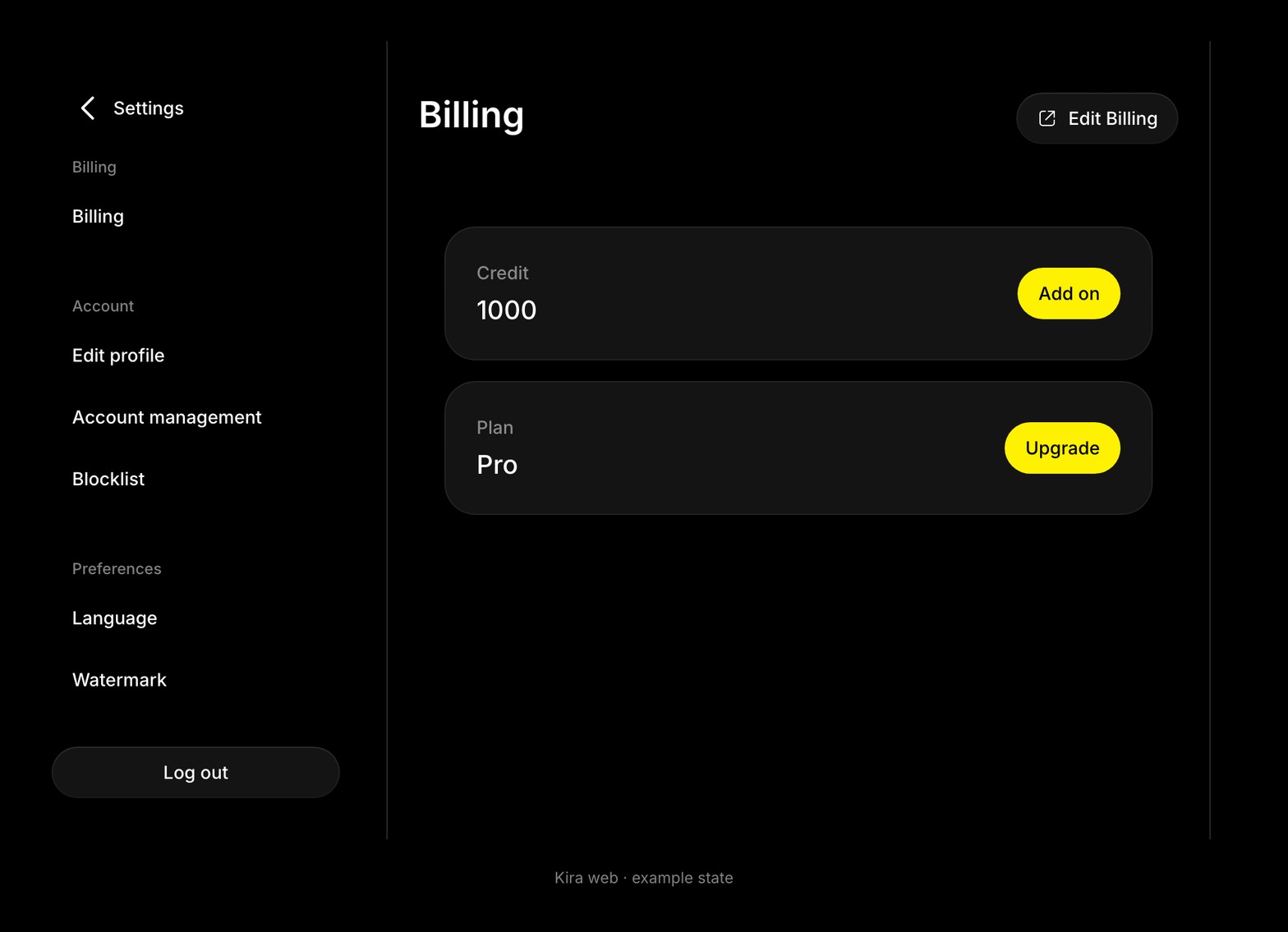
Open Profile → Settings → Billing on desktop. On mobile web, open Profile → Settings and find the Billing section.
Your Kira plan and credit balance appear there. The web billing portal or your store's subscription screen shows the subscription details, renewal date, and payment options for that purchase.
An add-on pack is a separate one-time purchase and does not renew automatically. See Plans, Add-ons & Upgrades for plan and pack options.
Cancel a web subscription
- Sign into the Kira account that has the subscription.
- Open Billing settings.
- Choose Edit Billing to open the billing portal.
- Select the subscription, choose the cancellation option, and complete the confirmation.
- Check the confirmation and the date when paid access ends.
Cancellation takes effect at the end of the current billing period. You keep paid access until that date. The subscription should not renew after a completed cancellation, but cancelling does not reverse charges for a period already started.
Cancel an App Store or Google Play subscription
Apple App Store
On your Apple device, open Settings → your name → Subscriptions, select Kira, and choose the cancellation option. Check Apple's confirmation and expiry date.
Google Play
Open Google Play → Payments & subscriptions → Subscriptions, select Kira, and cancel. Check Google's confirmation and expiry date.
For store subscriptions, turn off renewal at least 24 hours before the current period ends, as described in the Terms of Use. Follow the timing and conditions shown by your store.
Deleting the Kira app or your Kira account does not cancel an App Store or Google Play subscription. Cancel it separately in your store account settings. Kira cannot cancel a store-managed subscription on your behalf.
What happens after cancellation
- Your current paid plan remains available until its expiry date.
- No new subscription allowance is issued after the subscription has ended.
- The expired subscription's remaining regular credits are cleared.
- Add-on credits remain separate, while feature access follows your current plan.
- Cancelling a subscription does not delete your account or existing creations.
If you only want to stop renewal, cancel the subscription rather than requesting account deletion.
Update a payment method or resolve a failed payment
For a web subscription, use Edit Billing to review your payment method and invoices. For a store subscription, use the store's payment and subscription settings.
The payment platform may retry an unsuccessful renewal or ask you to update your details. If it cannot confirm payment, paid access or new credit allocation may be affected. The provider's messages explain the current payment status.
If a payment succeeded but Kira still shows the wrong plan, refresh Billing and check that you are signed into the correct account. For an app purchase, try Restore on the upgrade screen. Contact support if the mismatch continues.
Refunds for web purchases
Except where required by law, fees are non-refundable, and unused credits or partial billing periods do not automatically qualify for a refund.
For web purchases, Kira may consider partial or full refunds at its discretion in cases such as a clear billing error, duplicate charge, or other exceptional circumstances. A request does not guarantee approval.
Contact live chat or [email protected] with:
- The email or account information used for Kira.
- The payment date, amount, and receipt or invoice reference.
- A brief explanation of the problem.
Do not send full card numbers or passwords. The Terms of Use contain the complete refund terms.
Refunds for store purchases
Apple and Google handle refund requests for purchases made through their stores, under their respective policies. Kira cannot issue those refunds directly.
- Apple: use reportaproblem.apple.com with the Apple account that made the purchase.
- Google Play: use the refund request options in Google Play or its purchase history.
Approved store refunds can remove the corresponding credits or plan benefits from your Kira account.
Add-on packs and credits
Purchased packs are subject to the same purchase-platform refund rules. Credits are not cash, cannot be transferred to another person, and cannot be exchanged for money.
An unused balance is not an automatic refund entitlement. Review Credits & Usage if you want to understand credit deductions and reservations before reporting a discrepancy.
Questions about a charge
If a charge is unfamiliar, first check the purchase account, platform, renewal date, and any add-on receipts. Use the appropriate platform's billing screen to review it.
For a web billing concern, contact Kira support with the receipt and the details above. For a store purchase, also use Apple or Google's purchase and refund support. If you suspect a payment was unauthorized, follow your payment provider's security guidance.
Common questions
Can I cancel at any time?
Yes. Complete cancellation on the purchase platform, then check its confirmation and the effective end date.
Will I lose my creations if I cancel?
No. Subscription cancellation does not delete your account or existing creations.
Do I receive a refund if I forgot to cancel?
Renewal is automatic unless cancelled in time. Missing the renewal date does not automatically entitle you to a refund; the purchase platform's refund terms apply.
Can Kira cancel my Apple or Google subscription?
No. Manage it in the Apple App Store or Google Play account used for the purchase.