
Plans, Add-ons & Upgrades
Last updated:
Choose a subscription for the models and credit allowance you need. If you already have a paid plan and just need more credits, an add-on pack lets you top up without changing your subscription.
Open Profile → Settings → Billing on desktop, or the Billing section in mobile web Settings, to see your plan. The purchase screen shows the current price, billing interval, and available options before you confirm.
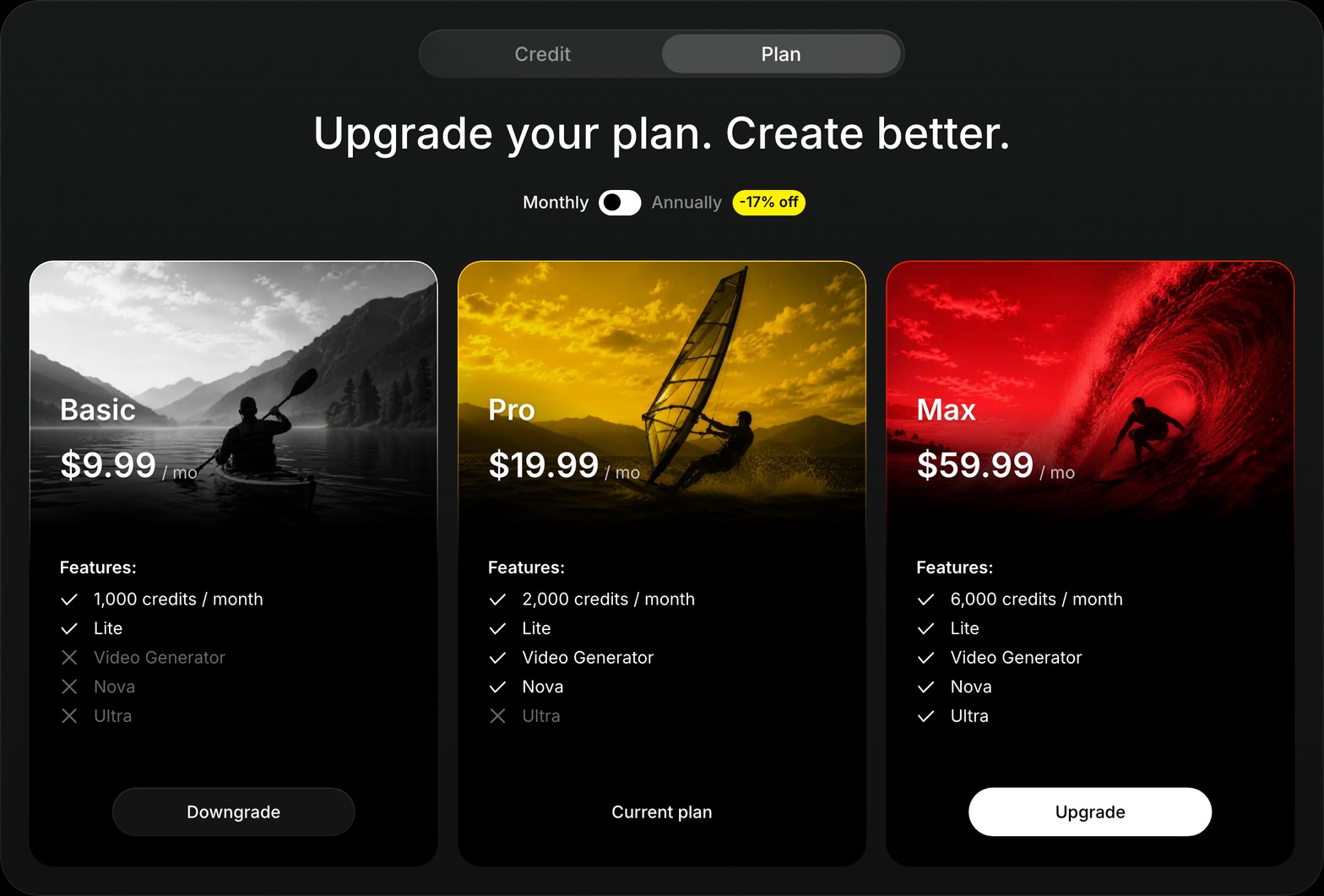
Choose a plan
- Free: try image creation and editing with Lite, welcome credits, and eligible daily top-ups.
- Basic: use Lite with a larger subscription credit allowance for regular image creation and editing.
- Pro: use Lite and Nova, plus video generation and video tools available on the plan.
- Max: use Lite, Nova, and Ultra, with the largest subscription allowance and access to Ultra video processing.
Paid access does not mean unlimited generations. Billable actions still consume credits, and you need enough available credits to start them.
Monthly or annual billing
Subscriptions renew monthly or annually, according to the option you purchase. Annual plans issue the year's credits together, rather than granting a new allowance every month.
Use the comparison below to check your plan's allowance. Credits differ between purchases on the web and purchases through the Apple App Store or Google Play.
Web subscriptions are billed through Stripe. Annual plans issue the whole year's allowance at once instead of refilling monthly.
The prices shown when you subscribe are the prices for that purchase platform and currency. An annual price displayed as a monthly equivalent is not a monthly charge; check the total and renewal interval before confirming.
How subscription credits renew
At a normal renewal, your regular credit balance resets to the new billing period's allowance. Unused subscription credits do not roll over on top of that allowance.
For example, a web Pro monthly renewal resets regular credits to 2,000. It does not add 2,000 to the unused balance from the previous period.
Add-on credits are tracked separately and are not reset by a normal subscription renewal. See Credits & Usage for balances, daily top-ups, and action costs.
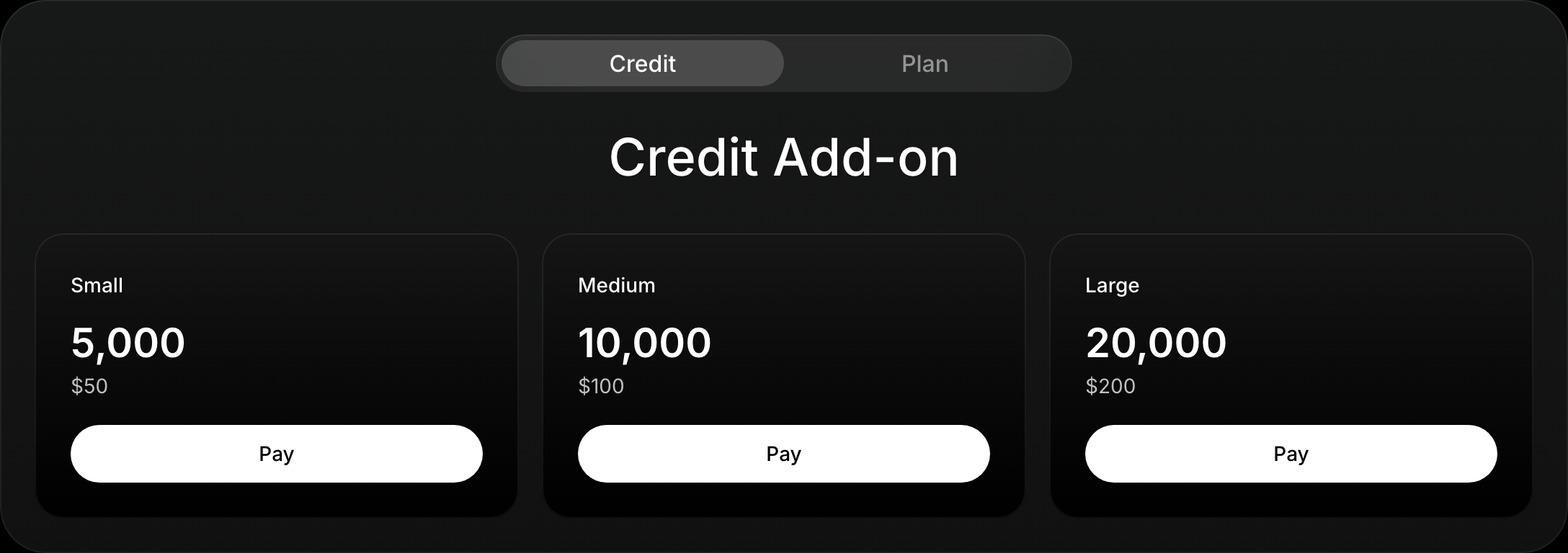
Buy an add-on pack
You need an active paid subscription to buy an add-on pack. It is a one-time purchase, not another subscription.
- Open Billing in Settings.
- Choose Add on beside your credit balance.
- Select a pack and check its credits and price.
- Complete the purchase through the checkout shown for your platform.
Packs need an active paid subscription. Prices are shown under Add on in Billing.
The credits are added to your add-on balance once the purchase is confirmed. Kira uses regular credits first, then add-on credits.
Buying a pack does not change your plan or unlock another model. For example, add-on credits on Basic do not grant Nova or Ultra access.
Upgrade or change your plan
Manage the subscription where you purchased it:
- Web purchase: open Billing settings, then Upgrade to review options or Edit Billing to manage the subscription through the billing portal.
- Apple App Store purchase: manage the subscription in Settings → your name → Subscriptions on your Apple device.
- Google Play purchase: manage it in Google Play → Payments & subscriptions → Subscriptions.
If you bought your subscription in a store, the web can show your plan but cannot cancel or change that store subscription for you.
The change confirmation shows when the new plan takes effect, the amount payable, and the next billing date. Immediate upgrades and scheduled changes can follow different rules, so use those details rather than assuming every change resets the billing cycle in the same way.
Credit allocation after an upgrade also depends on the platform and type of change. Check your updated balance after the change completes; the normal renewal rule does not describe every mid-cycle upgrade.
Downgrade or cancel
Use the same platform's subscription management screen. A scheduled downgrade normally keeps your current plan until the effective date shown there.
Turning off renewal keeps your paid access until the current billing period ends. Read Billing, Cancellations & Refunds for cancellation instructions and refund handling.
When a subscription ends
Your account returns to Free when paid access expires. You keep your account and existing creations, but the expired subscription's remaining regular credits are cleared and paid-only features become unavailable.
Add-on credits remain separate. They do not keep a paid plan active or override its feature requirements. You can subscribe again when you need paid access.
Common questions
Does Pro include Ultra?
No. Pro includes Lite and Nova. Ultra requires Max.
Can I buy an add-on instead of subscribing?
An active paid subscription is required to purchase a pack. A pack adds credits to that account; it is not a plan upgrade.
Can I buy another subscription on a different platform?
One Kira account can have one active subscription at a time. Manage or change the existing subscription on its purchase platform instead of starting a second one.
My store purchase isn't showing in Kira.
Check that you're signed into the intended Kira account, then use Restore on the app's upgrade screen if needed. If it still looks wrong, contact live chat or [email protected] with the receipt and account information.