
Motion Control
Last updated:
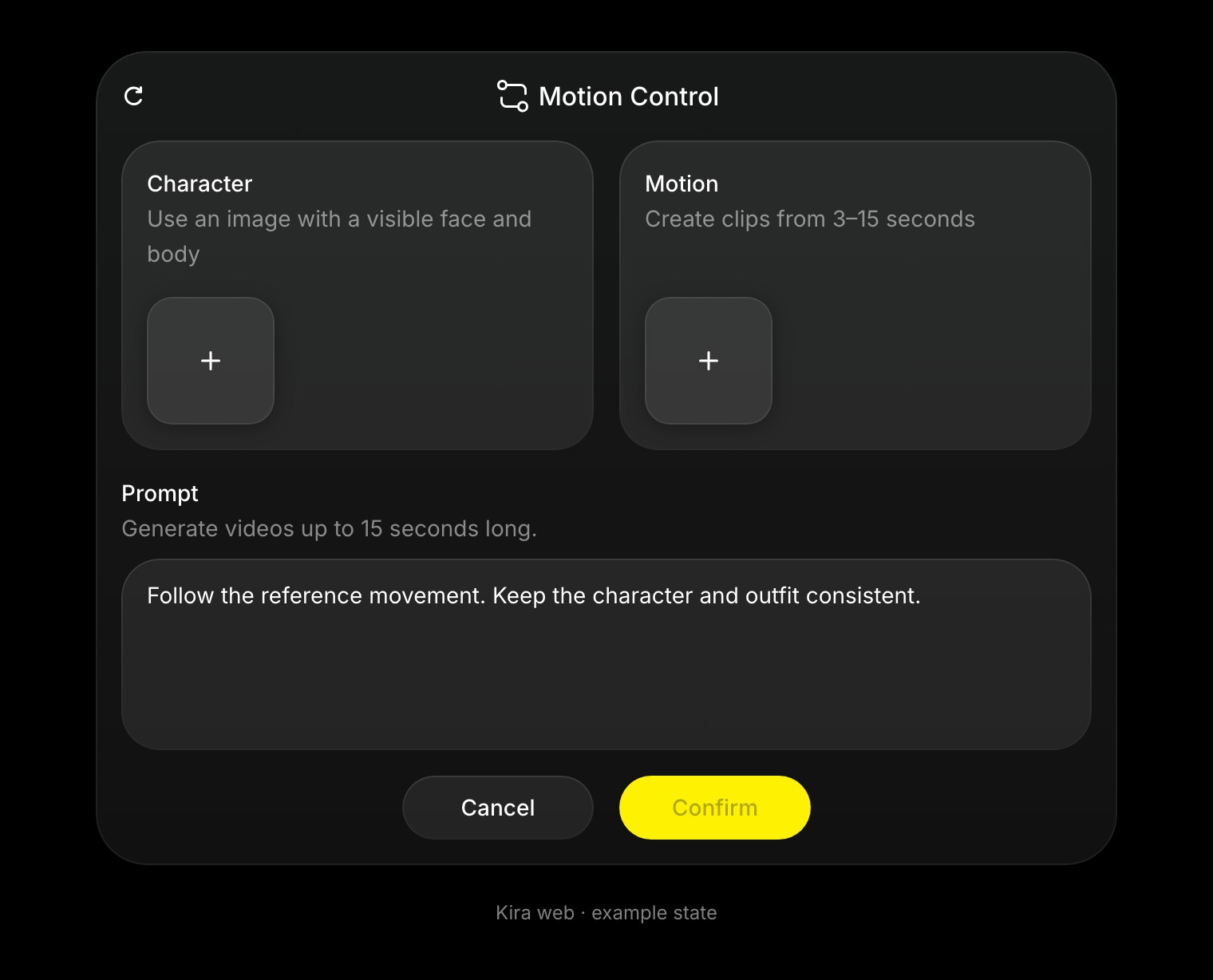
Motion Control uses an image for the character and a video for the movement. It is a good fit for character animation, a performance reference, or a short creative motion study. Use an account with the required video access and sufficient credits.
Prepare the references
Use a clear image where the character and relevant body parts are visible. Pick a video with understandable movement, good lighting, and minimal obstruction. Similar framing between the image and video makes the request easier to interpret.
The image and video should be ones you have the rights and permissions to use.
Use the panel
- Open a project and choose Motion Control.
- Add the image under Character. The current canvas image may already be selected.
- Add a reference clip under Motion. You can use an eligible completed canvas video or upload one.
- If the source is long, use the timeline to select the movement you want. The current panel accepts segments between 3 and 15 seconds.
- Add an optional prompt describing the intended scene or change.
- Confirm, wait for completion, and review the returned video.
For example, “Follow the reference movement. Preserve the character's face and outfit, with a simple studio background.” A prompt supports the references; it does not replace the required motion video.
Improve the result
Start with one visible subject and a simple movement. Avoid abrupt cuts, multiple overlapping people, or a reference in which the important movement is off screen.
If the result changes the character too much, use a clearer image and a better-matched reference. Identity and movement are not guaranteed to be reproduced exactly.
Credits and related tools
Current Motion Control processing can bill the reference-video duration and the output duration, at the applicable video rate. The cost is not necessarily output seconds alone. See Credits & Usage.
Use Video Generation when you want to describe movement without a motion reference, or Video Edit to change a completed clip.