
Image Generation
Last updated:
Describe the image you want and Kira creates a new result. You can start from words alone, or supply reference images to guide a subject or style.
Start a generation
- Open Editor → Trends on desktop or Create → Trends on mobile web.
- Type your idea in the prompt box. Add reference images with + if you need them.
- Select an available model and send your request.
- Review the result in the project that opens.
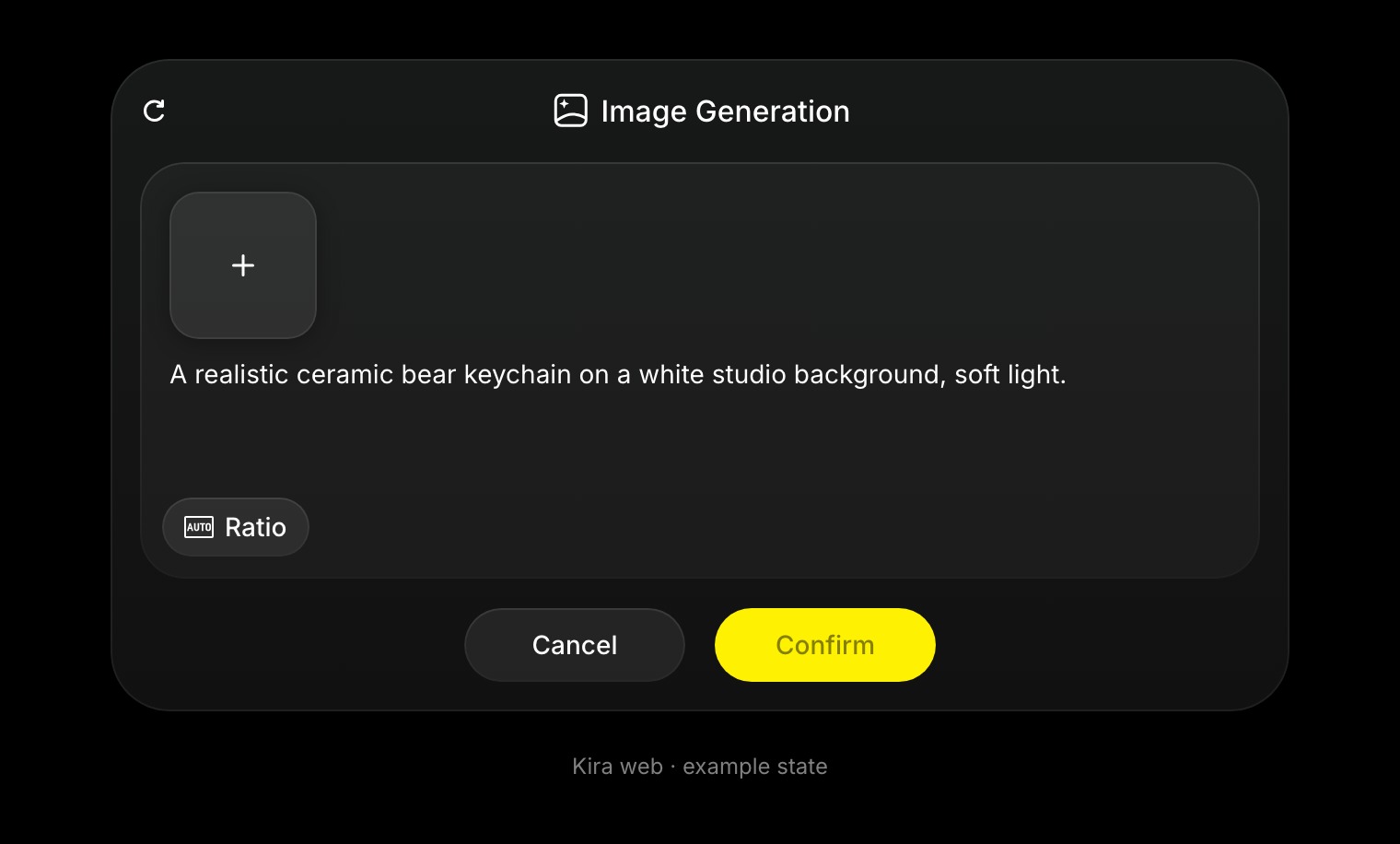
Inside a project, the Image Generation tool also opens a panel for a prompt, reference images, and an aspect ratio. Complete the panel and choose Confirm.
Write a useful prompt
Name the subject, surroundings, and look. For example:
A cosy coffee shop on a rainy night, warm lighting, reflections on the window, cinematic photo.
You can specify framing or an aspect ratio, such as a square product photo or a vertical portrait. Describe what a reference should contribute rather than assuming every detail will be copied.
Refine your result
Keep working in the same project and ask for one change at a time. Use Image Edit to change an existing result rather than describing an entirely new scene.
Try “Make the lighting warmer” or “Keep the cup, but simplify the background.” Use the version strip to compare results and Export to download the one you want.
Credits and common issues
Image generation currently costs 5 credits with Lite, or normally 10 with Nova or Ultra, for a completed action. Running tasks can reserve credits. See Credits & Usage.
If the result misses a detail, simplify the request and make the important elements explicit. Generated details are not guaranteed, and a low-quality reference can limit the result.