
Upscale
Last updated:
Upscale makes a higher-resolution version of the image on the canvas. Use it when a result is too small for print or a layout, or when you want to look at fine detail at full size.
CostUpscaleper completed action5 credits
Charges apply to completed actions. Nova and Ultra reserve the standard amount and settle the actual charge when the action finishes, which can be lower.
How to upscale
- Open the project and pick the version you want to enlarge from the version strip.
- Choose Upscale in the AI tools on the right.
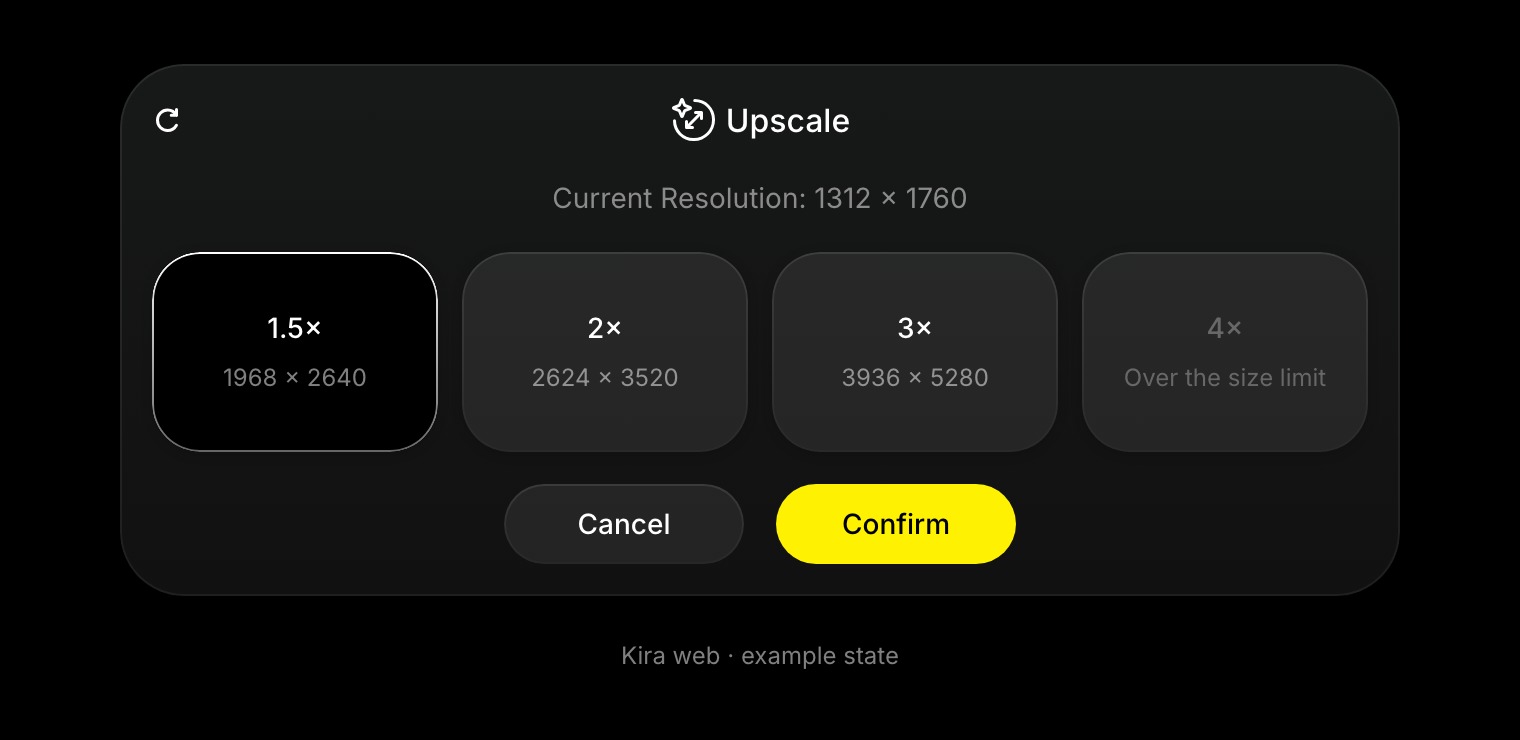
- Pick 1.5×, 2×, 3× or 4× . Each card shows the size it will produce.
- Choose Confirm and wait for the new version.
- Compare it with the original, then Export the one you want.
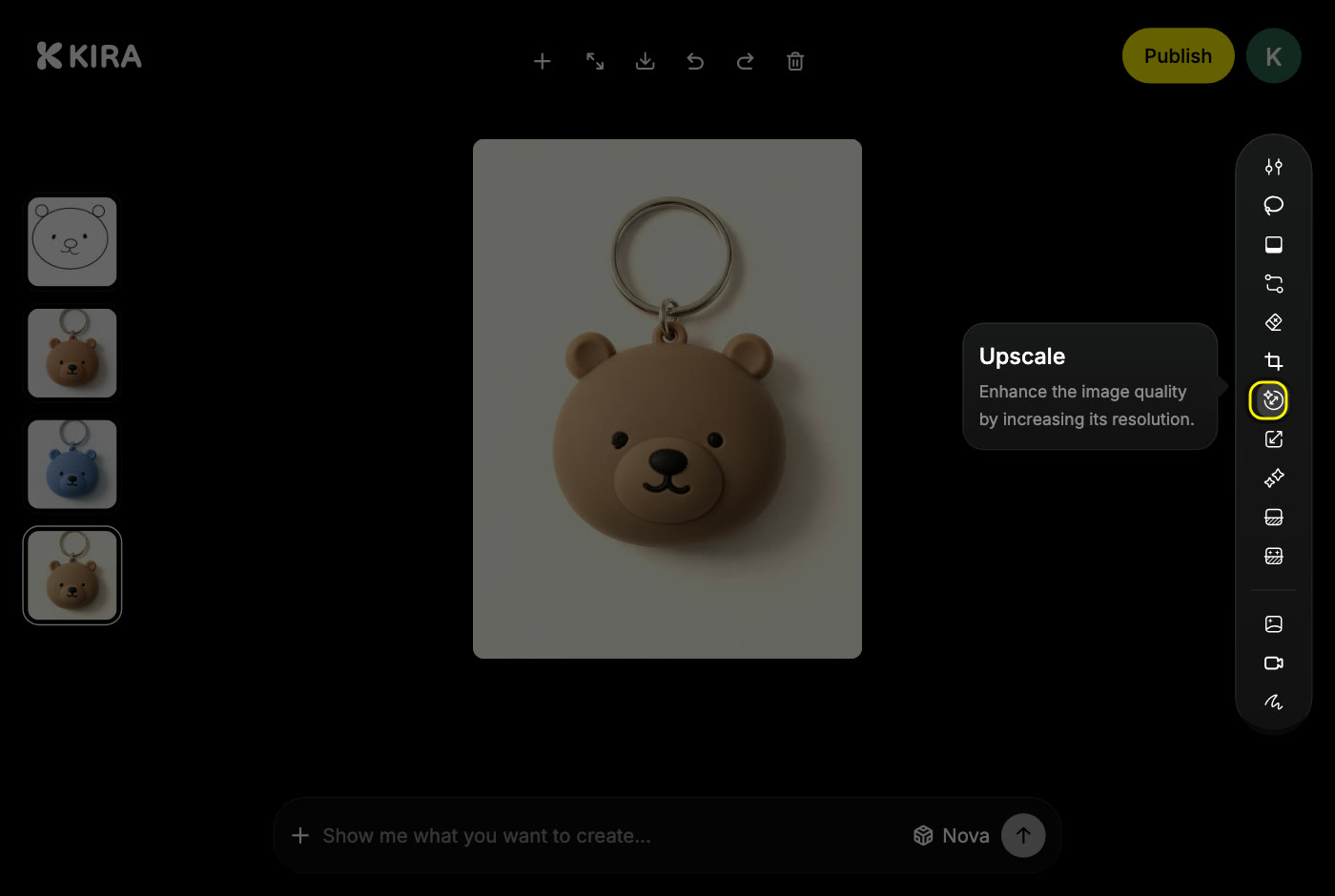
Check the size first
A factor is greyed out when its output would be larger than 8K (7680 × 4320 pixels). Type your image size below to see what each factor gives you.
1.5×1,968 × 2,6405.2 megapixels
2×2,624 × 3,5209.2 megapixels
3×3,936 × 5,28020.8 megapixels
4×Not availableThe output would exceed the 8K limit (7680 × 4320).
Upscale costs 5 credits per completed action. Options over the 8K limit are greyed out in the editor, so pick a smaller factor or crop first.
Tips
- Start from the best version you have. Upscale sharpens what is there; it cannot invent detail that was never in the image.
- Check faces, lettering and fine textures in the result before you export.
- Need a different framing first? Use Crop or Expand, then upscale the final frame.
- A transparent cutout from Remove Background can come back flattened. Upscale before you remove the background, not after.
Each confirmed Upscale is one billable action. See Credits & Usage for how reservations and retries work.