
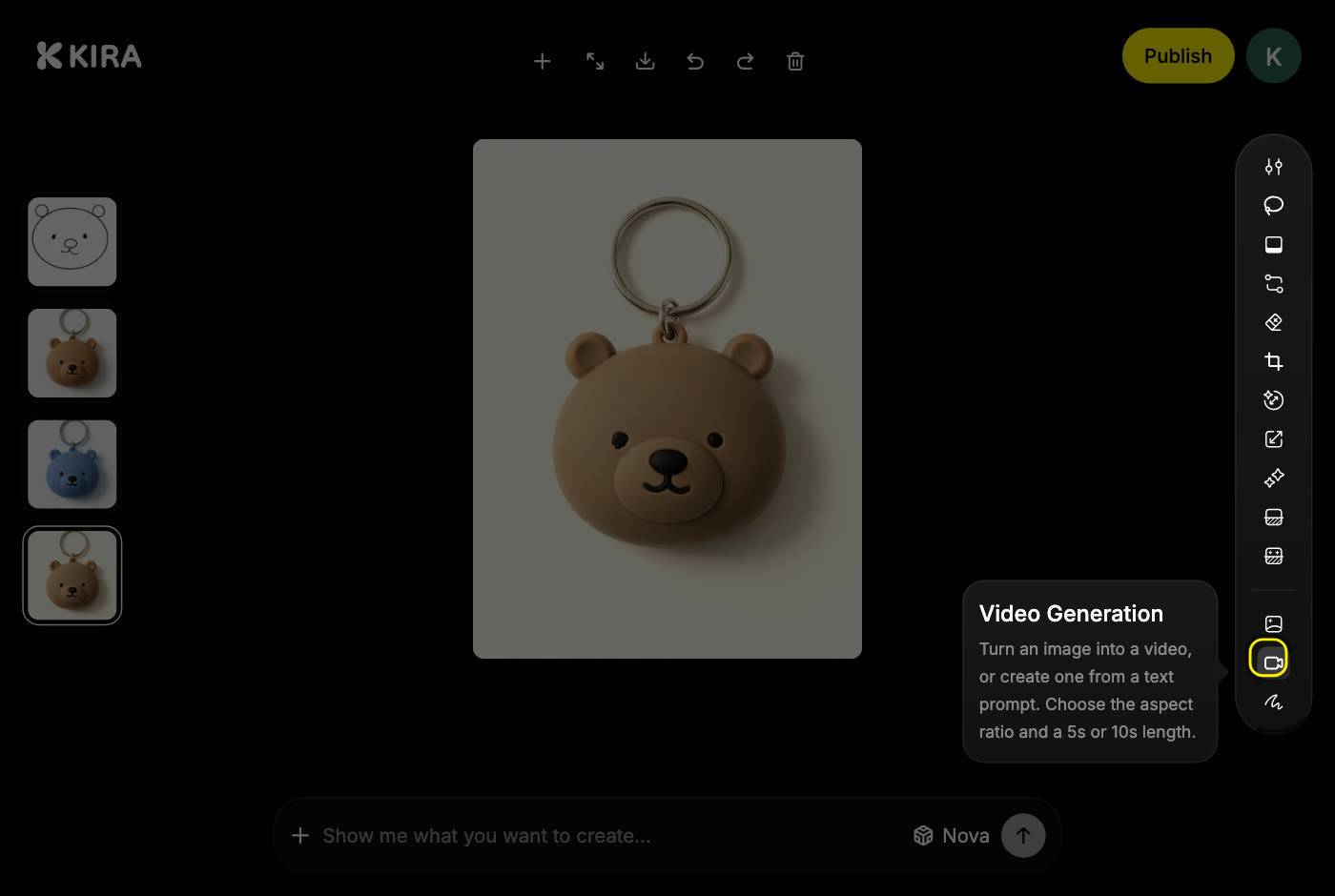
Video Generation
Last updated:
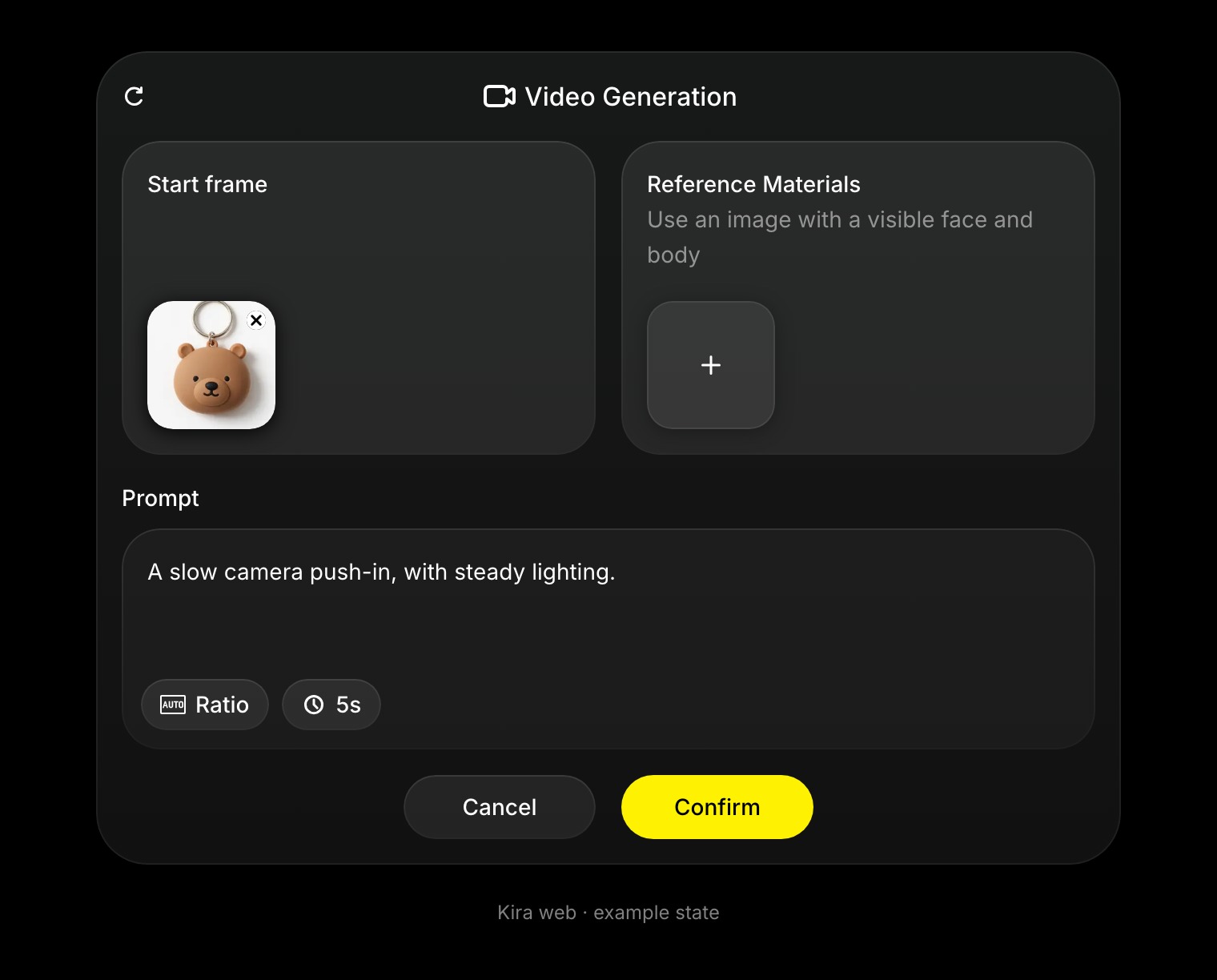
Video Generation creates a new clip from your description. Give it an image as the start frame and it animates that image. It is included in the Pro and Max plans.
Billed on the output length only.
How to generate a video
- Open a project and choose Video Generation in the AI tools.
- To animate an image, put it in the Start frame slot. The image on the canvas is usually there already.
- Write what happens, including any camera movement.
- Pick the duration and the aspect ratio.
- Choose Confirm and wait for the task to finish. The clip appears as a new version.
Describe motion, not the picture
The image already shows the scene. The prompt should say what moves:
A slow push-in, a gentle breeze moving the hair, steady lighting.
A slow camera pan across a futuristic city at night, reflections on wet streets.
One main motion per clip works best. Avoid two camera instructions that fight each other, such as "pan left" and "push in" in the same sentence.
What it costs
A new video bills its output length: 15 credits per second with Nova or 25 with Ultra, so a 5-second clip is 75 or 125 credits.
A new video bills its output length. Trimming without an AI step is free.
Tips
- Use a sharp start image. Blur in the image becomes blur in every frame.
- If a face drifts or the motion is too wild, simplify the prompt and run it again.
- Generation times vary with length and load. Leaving the page does not stop a running task.
Keep going from a finished clip with Video Edit, Video Extension or Trim Video. Other video tools also bill the input they process; see Credits & Usage.