
Motion Control
Last updated:
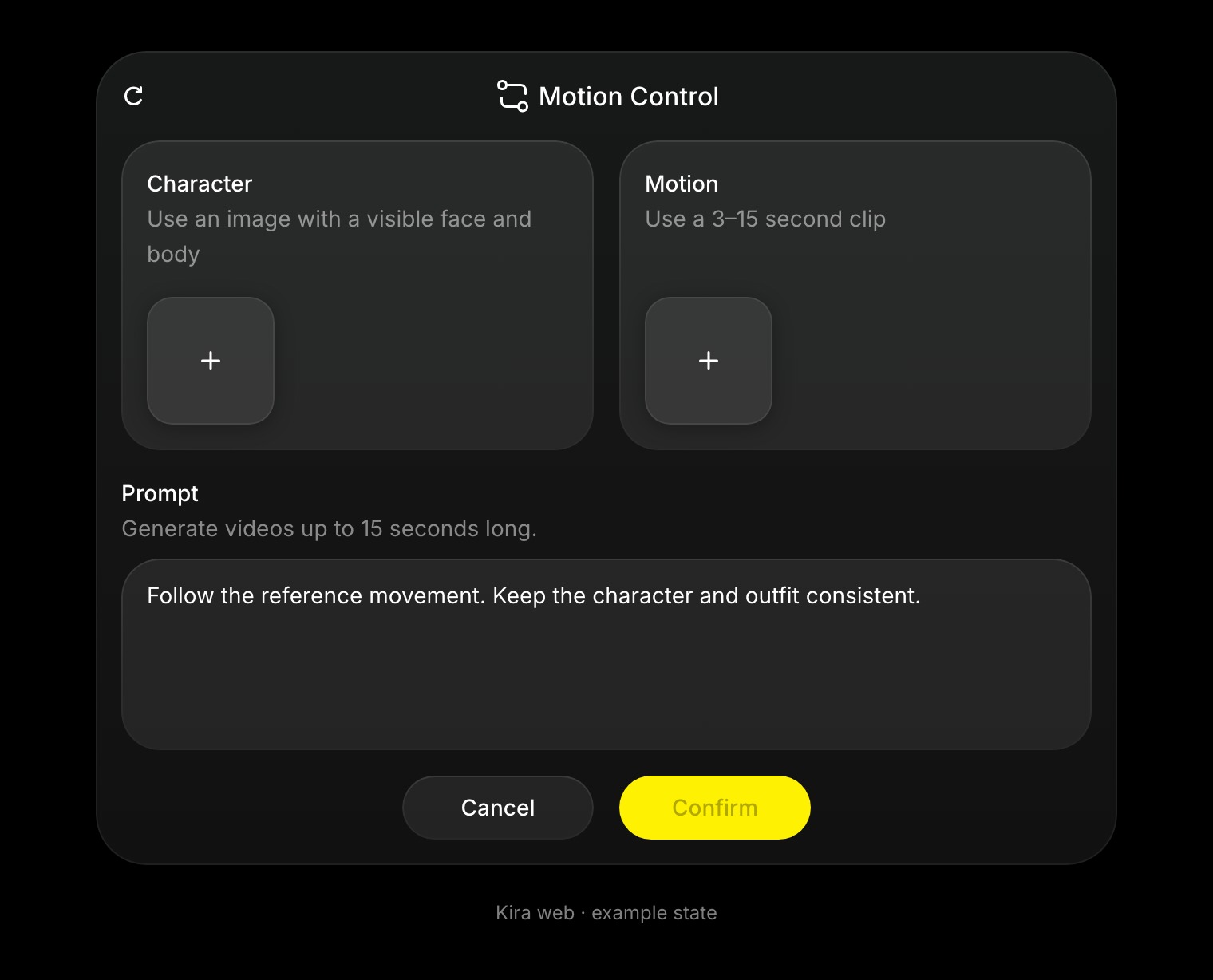
Motion Control takes an image for the character and a video for the movement. Use it to make a character perform, to copy a dance or a gesture, or for a short motion study.
Billed on the processed input plus the output. Trim the source first to keep the input short.
How to use Motion Control
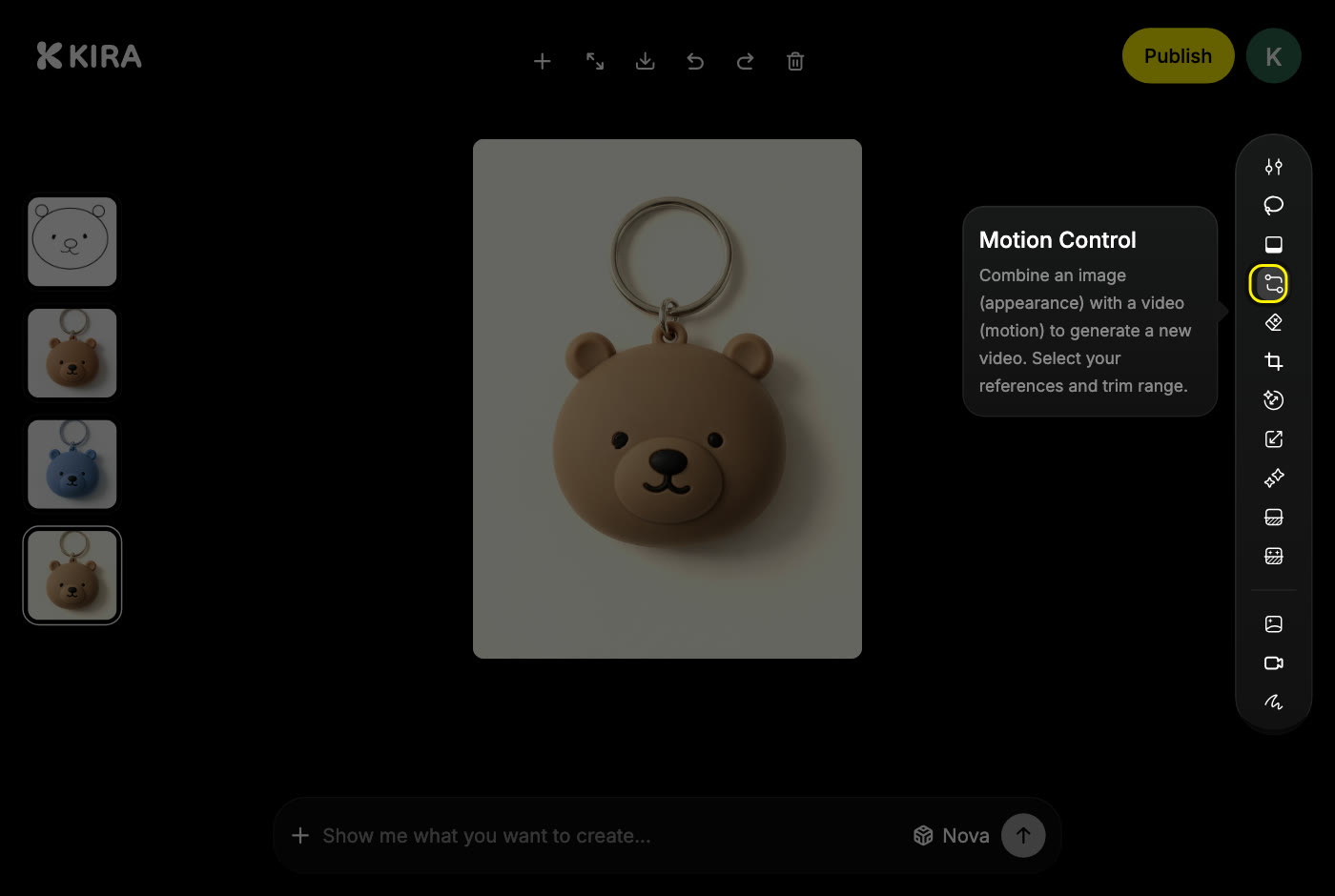
- Open a project and choose Motion Control in the tools. The image on the canvas is already selected as the character.
- Under Motion, pick a completed video from the project or upload a reference clip.
- If the clip is long, drag the timeline to the movement you want. The segment must be between 3 and 15 seconds.
- Add a prompt if you want to set the scene, for example "Follow the reference movement. Keep the face and outfit; simple studio background."
- Confirm, wait for the task, and review the result.
Pick good references
- Use a clear image where the character and the relevant body parts are visible, and a video with one visible subject, good lighting and no cuts.
- Frame the image and the video alike, so the movement maps onto the character cleanly.
- The prompt supports the references; it cannot replace the motion video.
- Only use images and videos you have the rights to use.
If the character drifts, pick a sharper image and a better-matched clip. Identity and movement are reproduced closely, not pixel for pixel.
What it costs
Motion Control bills the reference video you process as well as the output, so a longer segment costs more than a short one.
Motion Control bills the processed reference video plus the output. This example assumes both are the same length; the real input length is the segment you select.
Use Video Generation to describe movement without a reference, or Video Edit to change a finished clip. Reservations and retries are explained in Credits & Usage.