
Replace Background
Last updated:
Replace Background changes the surroundings of an image while using its subject as the starting point. You can describe a new background or supply an image reference.
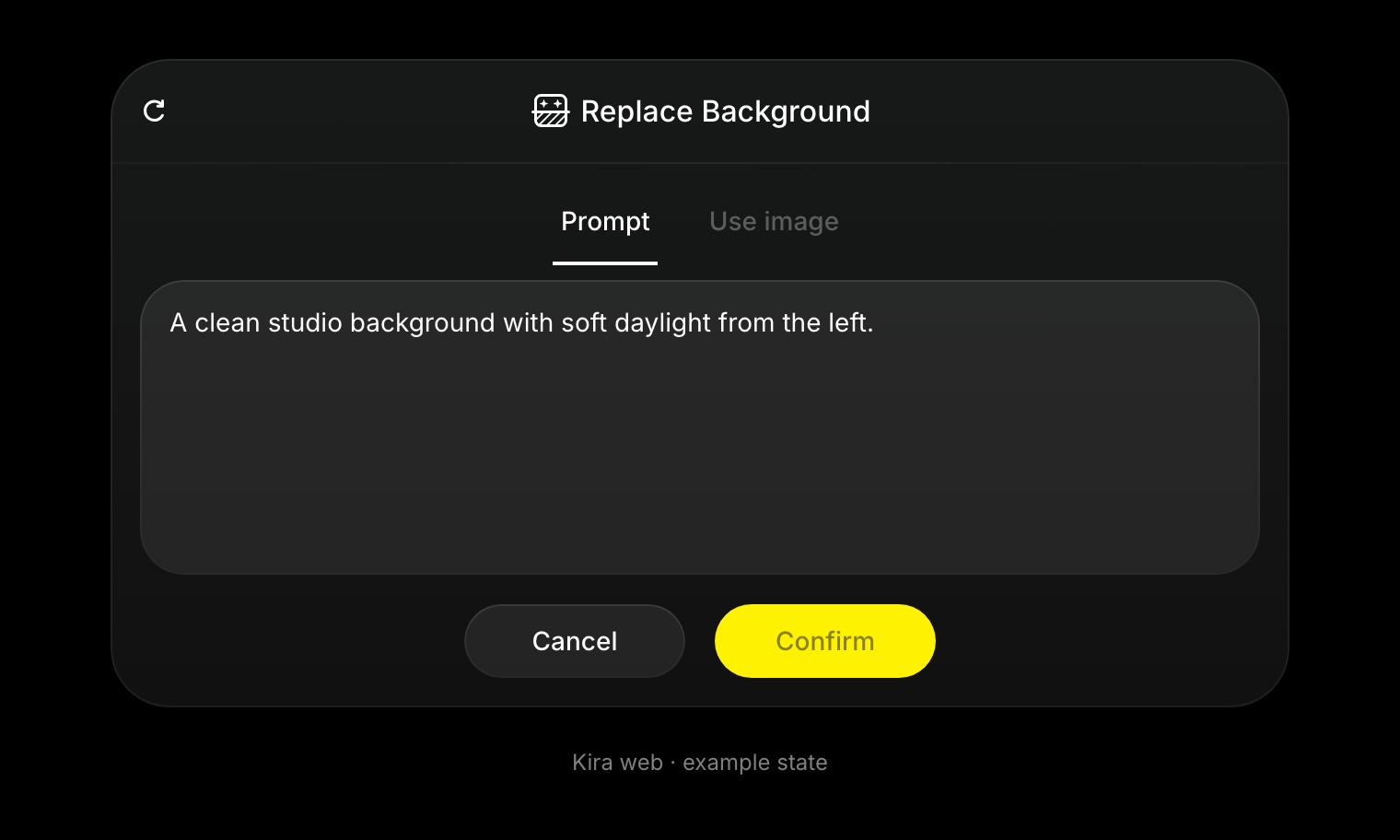
Replace the scene
- Open or upload the image in a project.
- Choose Replace Background.
- Select the prompt or image option shown in the panel.
- Describe the background, or upload the reference you want to use.
- Choose Confirm and review the new result.
For example:
A clean studio background with soft daylight from the left. Preserve the person and outfit.
If you use a reference, explain which part of it should guide the background. Review the subject's edges and details as well as the new scene.
Make the scene believable
Match the background's perspective and lighting to the subject. A simple background is often easier to blend than a crowded scene.
Use Sketch for a drawing-guided refinement or Eraser for unwanted details. Crop and Expand can help with framing.
Credits and related tools
Replace Background currently costs 5 credits per completed action. A new completed attempt is another action; see Credits & Usage.
If you need an isolated cutout rather than a new scene, use Remove Background.