
Choosing Lite, Nova or Ultra
Last updated:
Lite, Nova, and Ultra are the model choices in Kira. Select one for the request you are about to send; switching a model does not upgrade your plan or undo charges for earlier work.
Find the model selector
The model chip sits beside the prompt box in Editor → Trends, inside an open project, and in Create on mobile web. Open it to see the options available to your account.
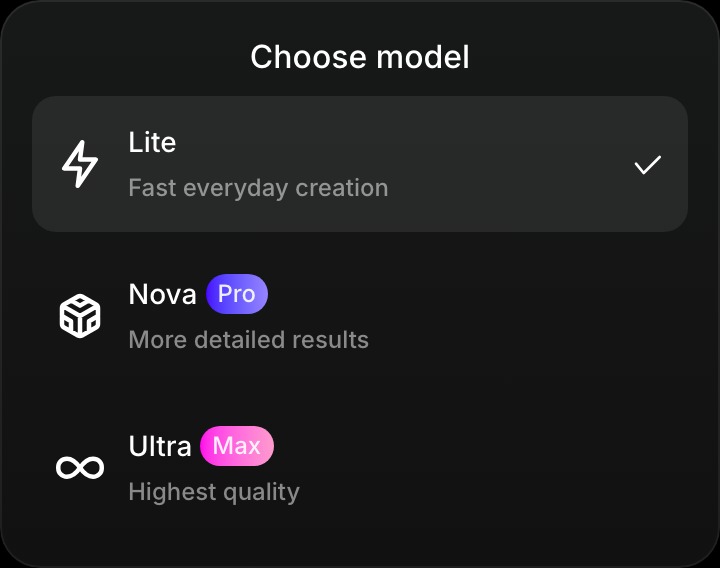
Compare your options
| Model | A useful starting point for | Plan access |
|---|---|---|
| Lite | Everyday image creation, quick ideas, and affordable iteration | Free, Basic, Pro, Max |
| Nova | More detailed image work and video creation | Pro, Max |
| Ultra | The highest-quality option offered in Kira | Max |
Video generation requires Pro or Max. Check the model and tool options shown in Kira for the request you want to make.
Switch models
- Open the model chip beside the input.
- Choose an available model.
- Check that your prompt and reference media are ready.
- Send the request.
Compare results in the version strip. If a choice is locked, review your plan before changing it; buying add-on credits alone does not unlock another model.
Credits and expectations
Current image generation and Image Edit charges are 5 credits with Lite and normally 10 with Nova or Ultra. Video has separate per-second rates and can include processed input as well as output. Read Credits & Usage for the details.
All model results need review. A higher tier is not a guarantee of a particular result, exact identity preservation, or unchanged details. Explain what should stay the same and refine one change at a time.
When to choose each
- Start with Lite when you are exploring a simple image idea.
- Choose Nova when you want a more detailed image result or plan to create video.
- Choose Ultra when the available highest-quality option matters for your final result.
See Plans, Add-ons & Upgrades for subscription access, or try Create your first image.