
Eraser
Last updated:
Eraser is for selected removals: a distracting object, a small blemish, or a detail you do not want in the picture. The selection tells Kira where to reconstruct the image.
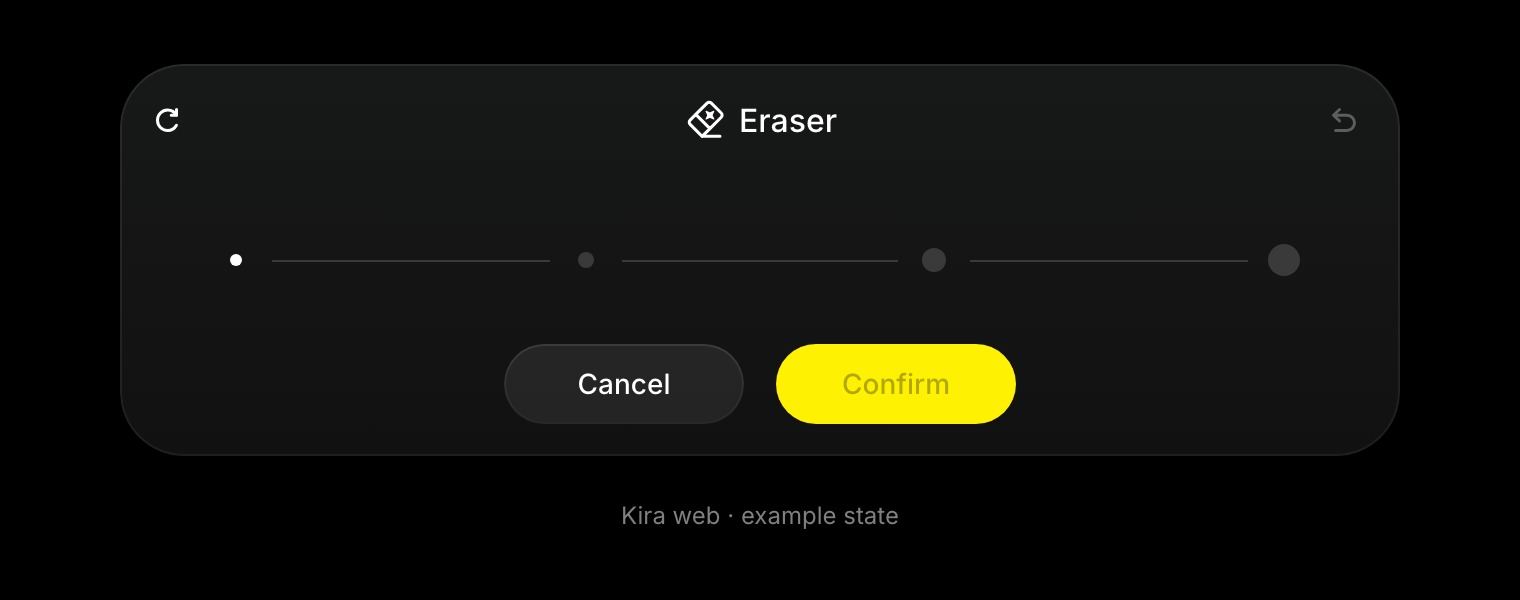
Remove an area
- Open the image in a project and choose Eraser.
- Select a brush size appropriate for the object.
- Brush over the area to remove, including a little of its edge where needed.
- Review your selection and choose Confirm.
- Check the new image and compare it with the earlier version.
Undo a selection stroke or reset the tool if you marked the wrong area before confirming.
Improve the result
Work in smaller sections for a detailed cleanup. Include shadows or reflections if those also need to disappear, and check repeated patterns or straight lines in the filled area.
The reconstructed area is generated content, so blending and exact detail are not guaranteed. If you want a specific replacement rather than removal, use Sketch or Image Edit.
Credits and next steps
Eraser currently costs 5 credits per completed action. Another confirmed successful pass is another action. See Credits & Usage.
Use Adjust for finishing colour and lighting, or Replace Background when the whole scene needs changing.