
Image Edit
Last updated:
Image Edit changes an image you already have. Use it for a new outfit, softer lighting, a different style, or a change to the scene without starting a new project.
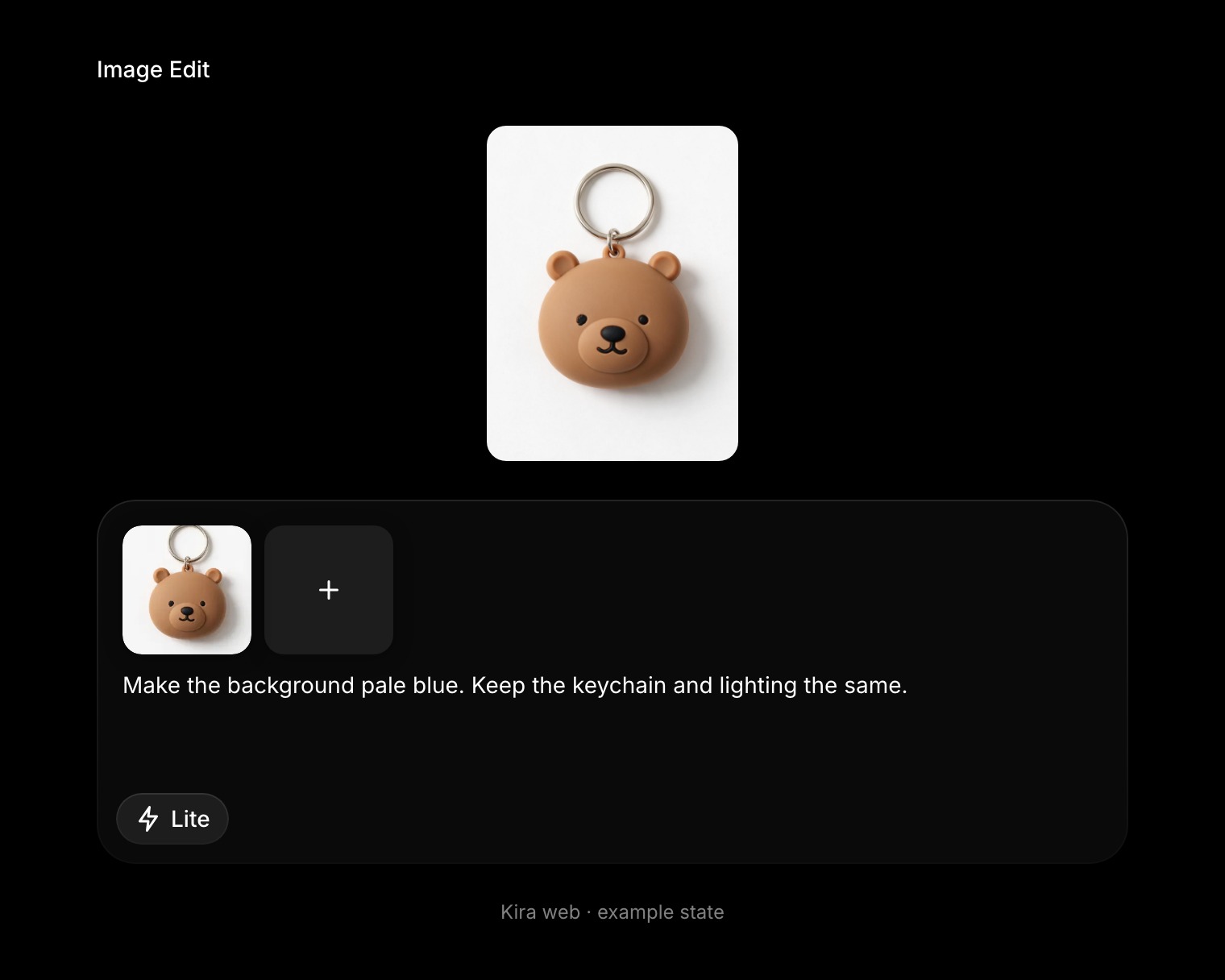
Choose the image
Upload a photo with + , or open a project from Editor → Project and select the version you want to work from. A Gallery preview and a project editor are different screens; return to the project when you want to continue its edits.
Describe the change
Write the change in the project's prompt box and say what should stay the same.
Change the outfit to business casual. Preserve the person's facial features, hairstyle, background, and lighting.
For a lighter edit, try “Make the lighting softer” or “Give the background a clean studio look.” If you attach more than one image, explain each image's role.
Review and refine
Send your request, review the result, and compare it with the original using the version strip. Keep follow-up changes focused.
If an edit changes too much, simplify the prompt and state the details to preserve. AI editing does not guarantee that every unmentioned detail stays identical.
Choose another tool when needed
- Use Sketch to show where a change belongs with drawn marks and a short description.
- Use Eraser for a selected removal.
- Use Redux when you want a variation rather than a specific correction.
Credits
Completed Image Edit actions currently cost 5 credits with Lite, or normally 10 with Nova or Ultra. A new completed edit is another billable action. See Credits & Usage.