
Expand
Last updated:
Expand fills new space around an existing image. It is useful when a portrait needs room for a wider layout or a picture needs a different aspect ratio.
Expand the canvas
- Open the image in a project and choose Expand.
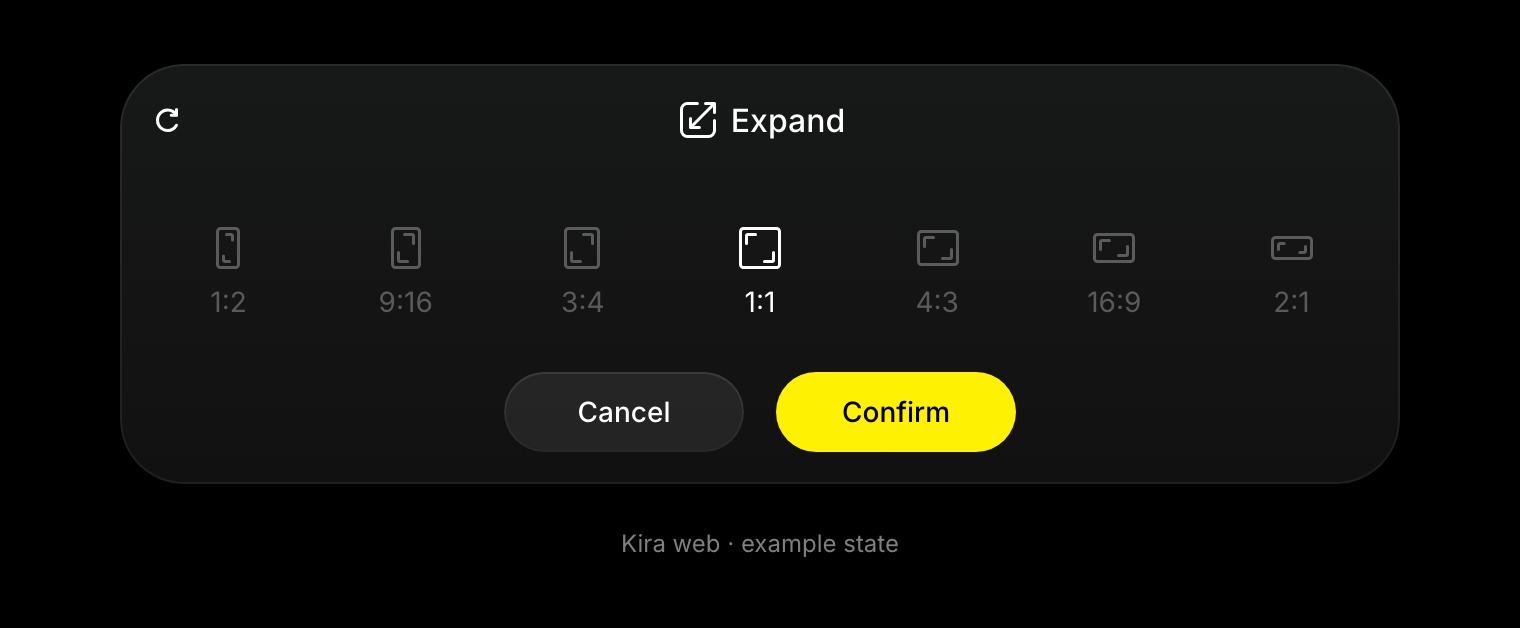
- Select an available target ratio or adjust the expansion area using the controls shown.
- Position the original image within the new frame if that control is available.
- Review the space to be filled, then choose Confirm.
- Compare the generated edges with the original.
Common ratios include 1:1, 4:3 / 3:4, 16:9, and 9:16. Use the panel to check the resulting frame before confirming.
Tips
Make modest expansions first. Large empty areas give Kira more content to invent and can be harder to match.
Look for repeated patterns, straight lines, and lighting changes at the original edges. Use Sketch for a drawing-guided refinement, Crop for the final framing, or Upscale for a larger result.
Credits and related workflows
Expand currently costs 5 credits per completed action. See Credits & Usage.
Expand is an image tool. To continue a video beyond its current ending, use Video Extend.