
Sketch
Last updated:
Sketch is drawing-guided creation and editing. Circle an area, draw an arrow, rough out a shape, then tell Kira what the marks mean. It arrived with the Kira 5.8 update.
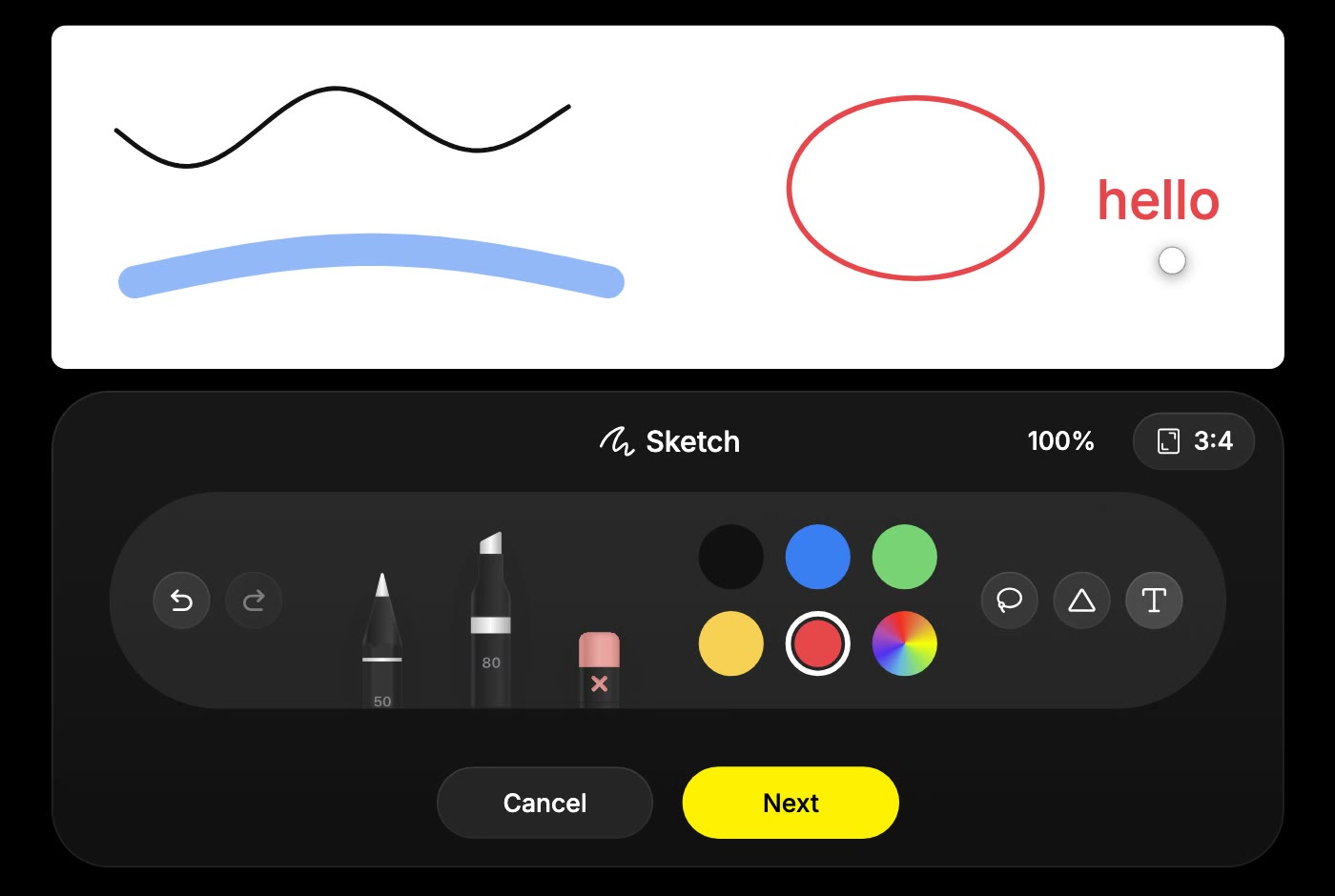
Drawing is free. Confirming the sketch runs an image generation or edit, billed by the model you chose.
How to guide an edit with a drawing
- Open the image in a project.
- Open the drawing tool for that image.
- Mark what should change: circle an area, point with an arrow or sketch a rough shape.
- Choose Next.
- Describe the edit and what the marks mean, then choose Confirm.
For example, circle a garment and write "Change the circled clothing to a red skirt. Keep the face, pose and background." Check the result before marking the next change.
Start from a blank canvas
- Choose Sketch to open a new canvas.
- Pick a ratio: 1:1, 4:3, 3:4, 16:9 or 9:16.
- Draw the idea, choose Next, and describe the finished image.
- Choose Confirm.
A rough bear drawing plus "A realistic bear keychain on a white background" is enough to tell Kira what the drawing is meant to become.
The drawing kit
- Pen and marker for precise lines or broad strokes, with width and opacity controls.
- Eraser to remove part of the drawing.
- Shapes: lines, arrows, rectangles, ellipses and triangles.
- Text to label a detail or leave a written cue.
- Lasso to select, move or copy part of the sketch.
- Undo and redo while you draw. Hold still at the end of a stroke to snap it into a clean shape.
Need to change the marks after writing the description? Choose Back to return to the drawing.
Tips
- Keep the marks simple and pair each one with a short instruction.
- Say whether a mark is a direction ("put a lamp here") or something to keep ("keep this face").
- Compare the returned image with your sketch; Kira interprets marks, it does not trace them.
Drawing is free. Confirming runs an image generation or edit on the model you chose, and that action uses credits. See Credits & Usage. For changes you can describe without drawing, use Image Edit.