
Trim Video
Last updated:
Trim Video keeps a selected time range from a completed clip. Use it to remove an unnecessary beginning or ending, or to prepare a focused segment for another workflow.
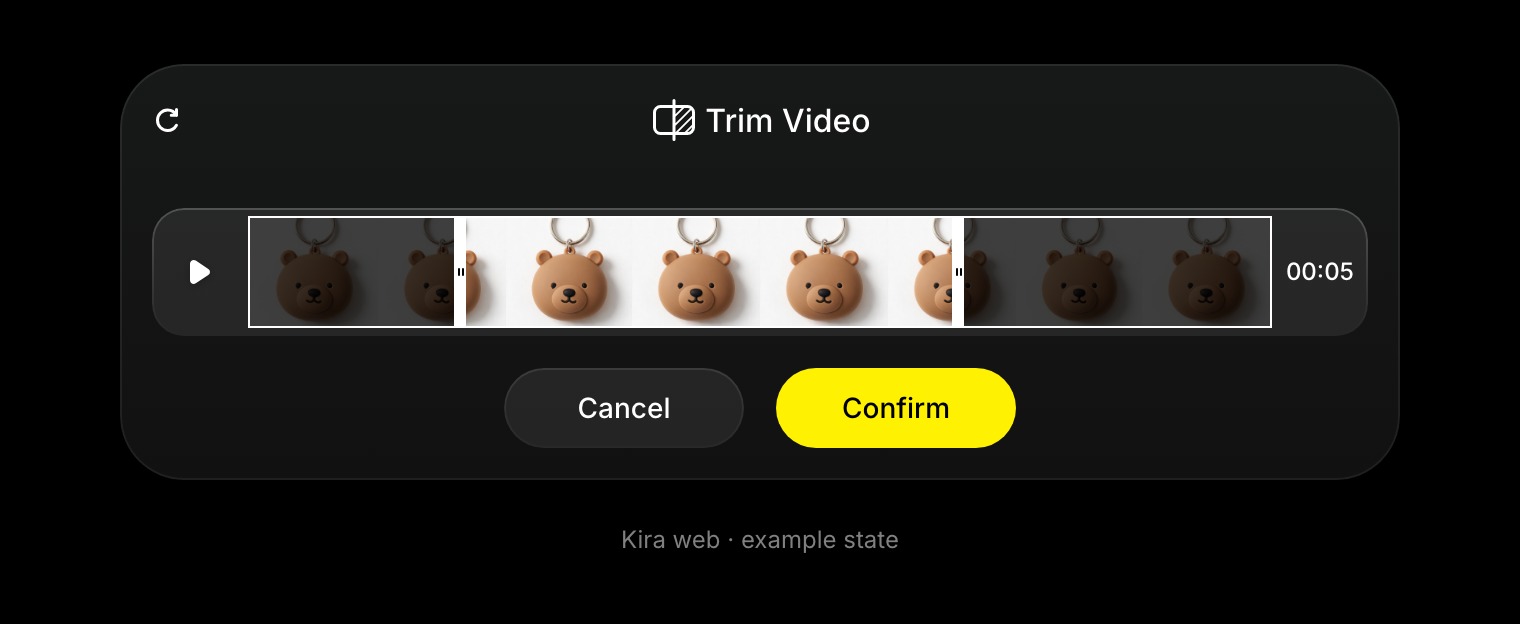
Select a time range
- Open the project and choose the completed video.
- Select Trim or Trim Video in the video tools.
- Move the start and end controls on the timeline.
- Preview the selected range and check its boundaries.
- Confirm, then export the trimmed result if you want to save it.
The current panel requires a selection of at least 0.5 seconds. If the controls are unavailable, wait for the video metadata to load and check that the end follows the start.
What trimming changes
It changes the part of the video kept, not the subject, scene, or movement within the existing frames. Use Video Edit for a new visual treatment or Video Extend to generate a continuation.
Credits
Trimming by itself does not have the per-second AI-generation charge. If you subsequently run a generation, edit, extension, or motion-control task, that operation has its own credit cost. See Credits & Usage.