
Video Extend
Last updated:
Video Extend creates a continuation from a completed clip. It differs from Expand, which adds space around an image, and from Trim Video, which shortens existing footage.
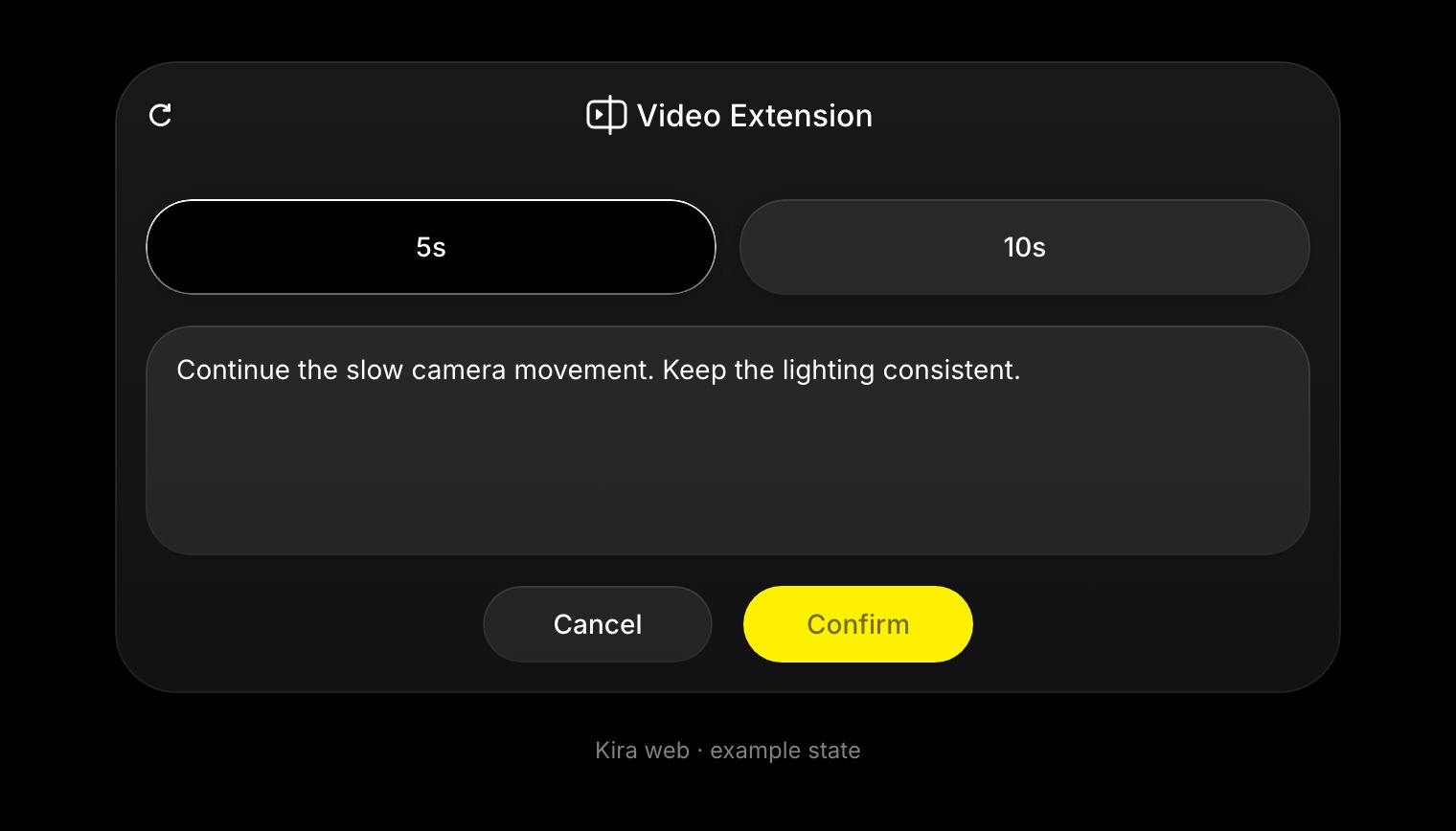
Extend a video
- Open the project and select a completed video.
- Choose Video Extend.
- Review the source preview. For a longer source, use the trim controls to choose a short anchor segment; the current selection is 4–5 seconds.
- Choose one of the available extension options, currently 5 or 10 seconds.
- Describe what should happen next and confirm.
- Preview the returned clip before exporting or continuing.
Describe the continuation
Continue the slow camera pan, revealing more of the coastline. Keep the lighting and scene style consistent.
Give the next action a clear direction. A coherent anchor and a modest continuation are easier to work with than a request for several unrelated scene changes.
Output length and billing
The returned clip includes the retained source segment and generated continuation, within the tool's output limit. Do not assume every request preserves the entire original source video.
Billing can include the source anchor plus the full output, including the retained part. It is not necessarily the price of only the new seconds. Read Credits & Usage before estimating the cost.
Review common issues
If the transition is inconsistent, select an anchor with clear movement and stable lighting, then simplify the continuation prompt. If Confirm is unavailable, check that the source loaded, the segment is valid, and the prompt is filled in.