
Video Generation
Last updated:
Video Generation creates a new clip from your description, optionally guided by an image. It is available on Pro and Max plans.
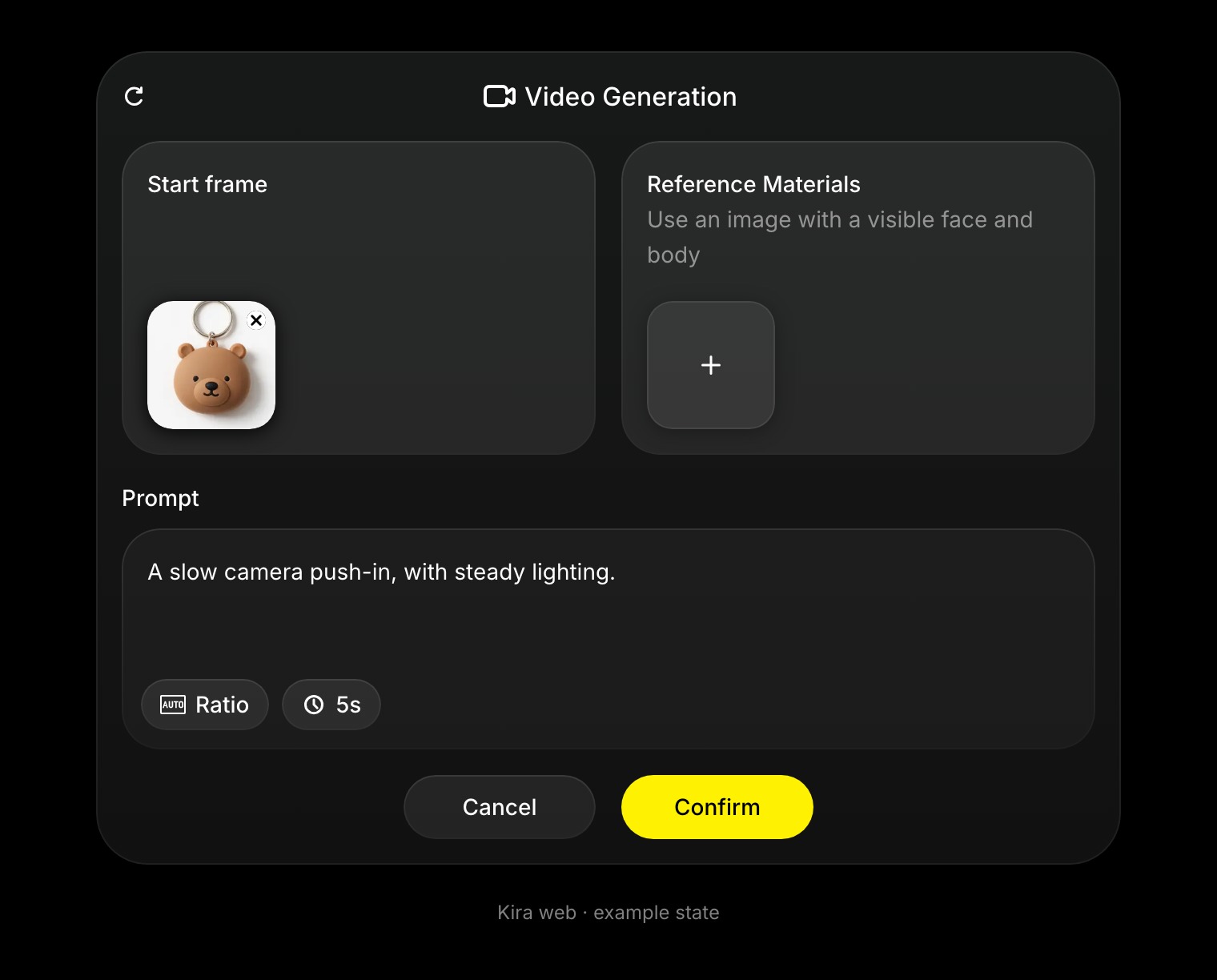
Generate from words
- Open a project and choose Video Generation from its tools.
- Write what happens in the scene, including any camera movement.
- Choose the available duration and aspect ratio in the panel.
- Confirm and wait for the task to finish before reviewing the clip.
For example:
A slow camera pan across a futuristic city at night, reflections on wet streets, gentle movement in the lights.
Animate an image
Open or upload the image, then use the video panel's Start frame slot to select it. Describe movement rather than only repeating what is already in the image.
Try “A slow push-in, with a gentle breeze moving the hair” or “The product rotates slowly on a studio pedestal.” Keep the motion focused for your first attempt.
Review, save, or continue
Preview the completed video. Use Export or the download control to save it. Video Edit, Video Extend, and Trim Video help you continue from a completed clip.
Credits and tips
New video generation bills its output duration at the applicable video rate: 15 credits per second for Nova or 25 for Ultra. A 5-second clip is therefore 75 or 125 credits. Other video tools can also bill processed input; see Credits & Usage.
Use a clear starting image, describe one main motion, and avoid conflicting camera instructions. If a face changes or motion is excessive, simplify the prompt and compare a new result. Results and generation times vary.