
Video Edit
Last updated:
Video Edit changes a completed video using a prompt. Use it for a different look, outfit, lighting treatment, or scene detail while referring to the clip you already have.
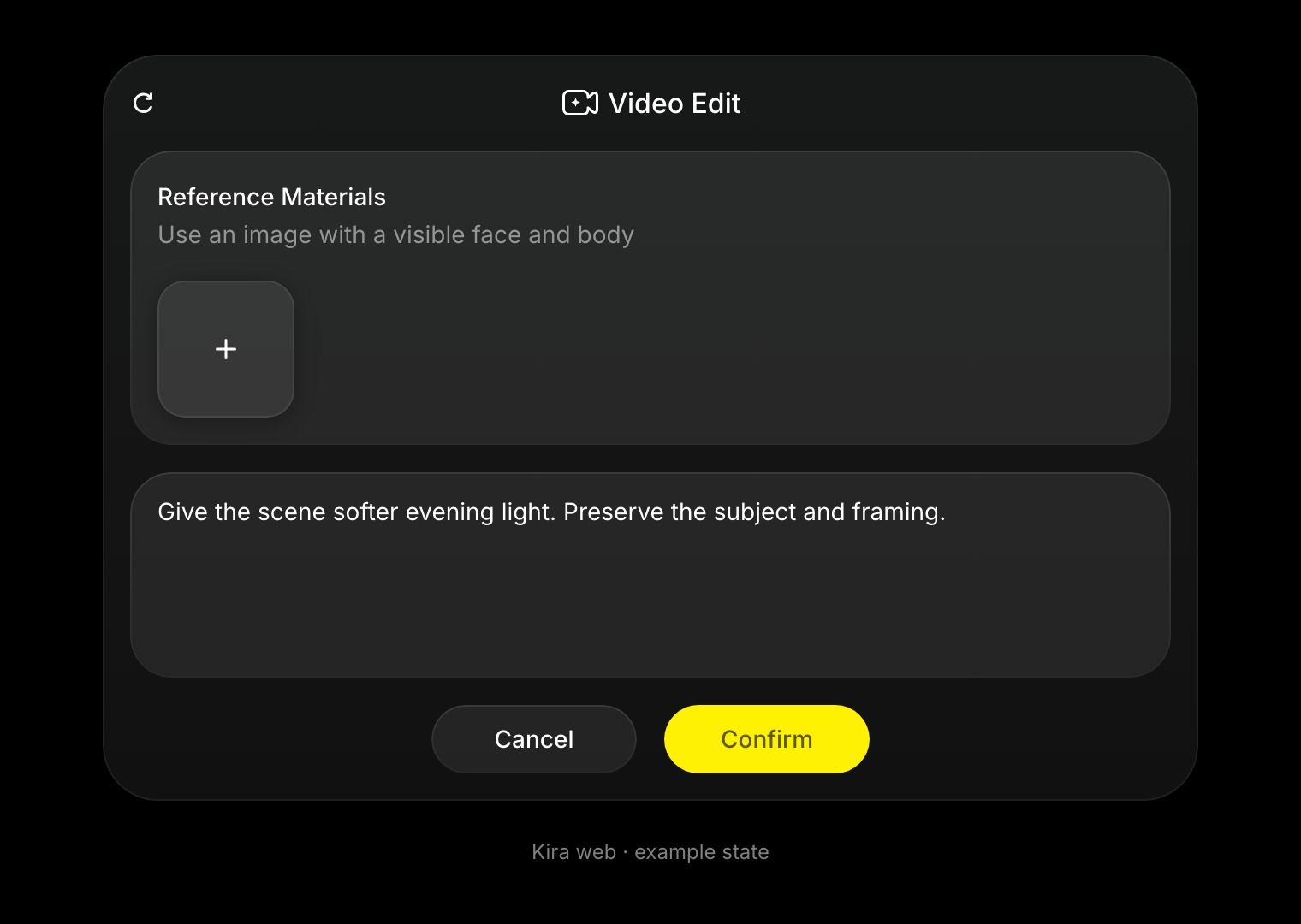
Edit a clip
- Open the project and select a completed video.
- Choose Video Edit from the video tools.
- If the source exceeds the current 10-second editing range, select a supported segment in the trim step. The trim selection requires at least 4 seconds.
- Write the change you want. Add image references if they help define it; the current panel supports up to 4 reference images.
- Finish any uploads, then confirm the request.
- Preview the completed result and compare it with the source.
Write a focused edit
Give the scene softer evening light. Preserve the person, outfit, movement, and camera framing.
Make one main change at a time. Explain which parts of a reference should be used, and do not assume everything else remains pixel-identical after AI processing.
Know the credit calculation
Video Edit can bill processed input plus output. Editing 5 seconds of source into 5 seconds of output is 10 billable seconds: 150 credits at the Nova rate or 250 with Ultra.
See Credits & Usage. A completed new edit uses credits even if you prefer the original result.
If a control is unavailable
Check that the selected video has completed, the segment is valid, media uploads have finished, and the prompt is not empty. Also check your plan and available credits.
Use Trim Video to shorten a clip without a new AI edit, or Video Extend for a continuation.