
Upscale
Last updated:
Upscale creates a higher-resolution version of an existing image. It is useful when a result is too small for your layout or you want to inspect it at a larger size.
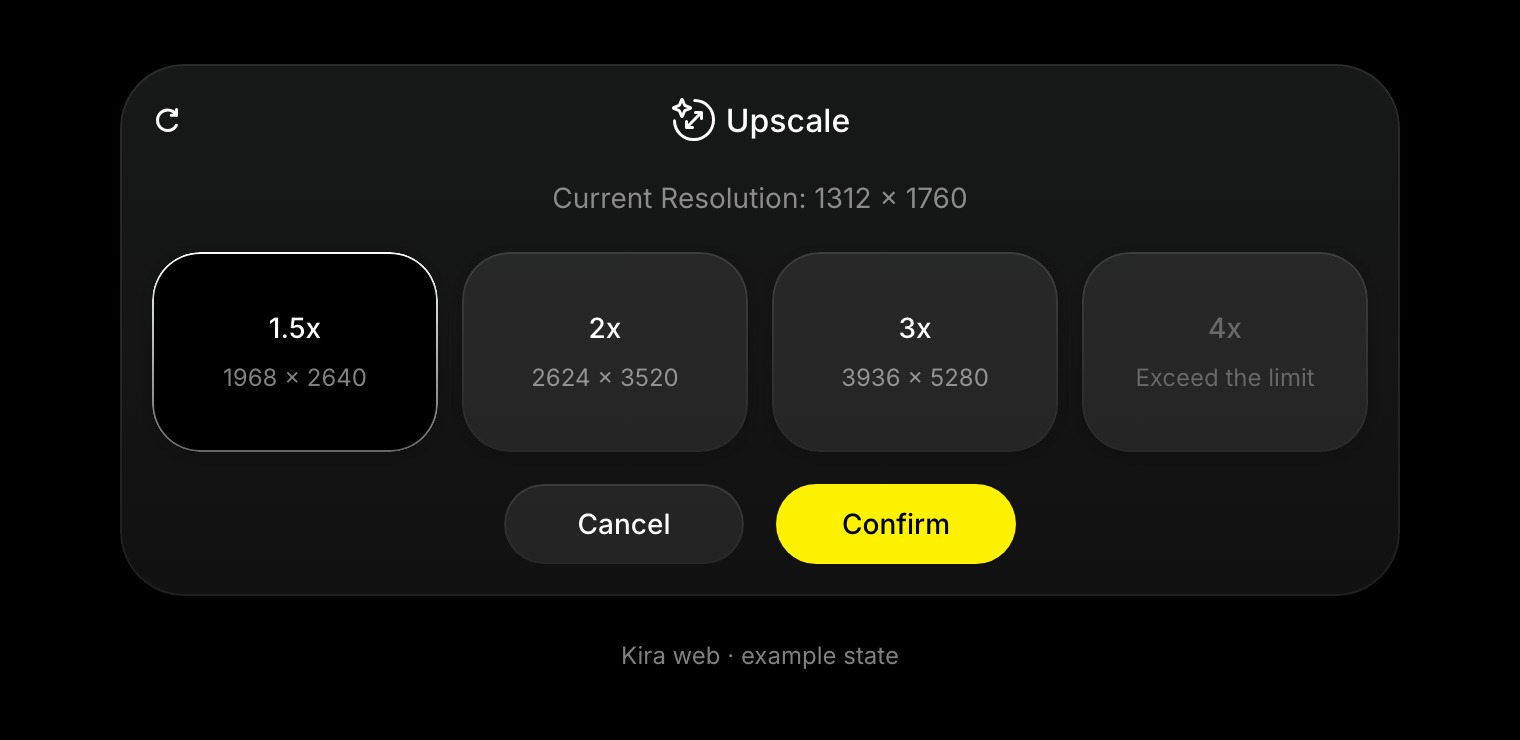
How to upscale
- Open or upload the image in a project and select the version to enlarge.
- Choose Upscale from the tools.
- Review the current resolution and the 1.5×, 2×, 3×, or 4× options available in the panel.
- Select an enabled option and choose Confirm.
- Compare the new result, then use Export to save it.
An option can be disabled when its output would exceed the supported resolution. The panel's displayed output dimensions are more useful than assuming every source can be enlarged by the full factor.
Tips
Start from the best source available. Upscaling can make an image larger and improve apparent sharpness, but it cannot reliably restore information that was never present.
Check fine textures, faces, and lettering in the result. If you need a different composition first, use Crop or Expand.
Transparency and credits
Do not assume an upscaled cutout keeps its transparency. The current upscaler can flatten transparency; review the output before using it as a transparent asset.
Upscale currently costs 5 credits per completed action. See Credits & Usage for reservations and retries.