
Sketch
Last updated:
Sketch is Kira's upgraded drawing-guided creation and editing workflow. Add a circle, arrow, shape, or freehand drawing, then explain what those marks mean. The Kira 5.8 update introduced this workflow.
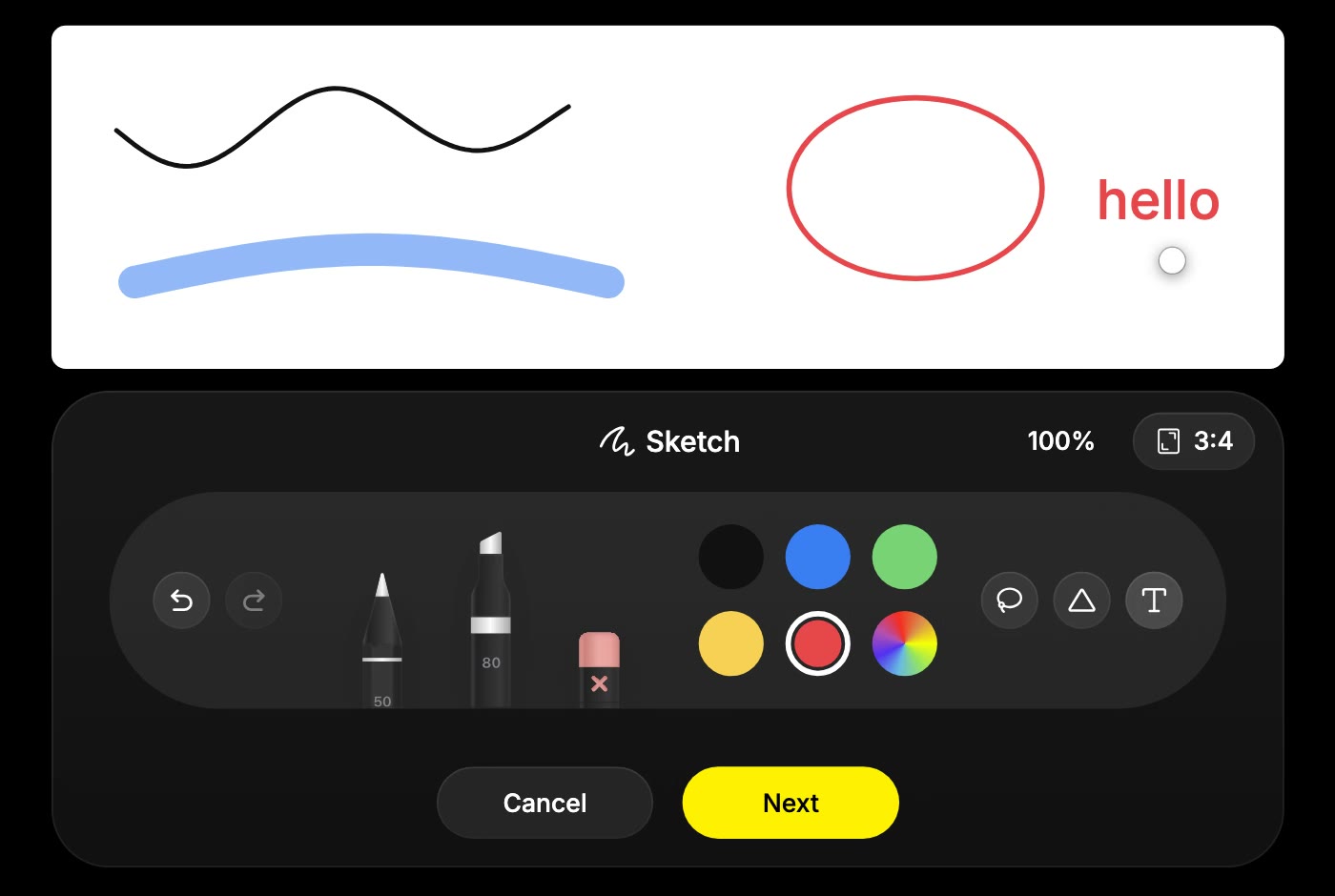
Guide an image edit
- Open the image you want to change in a project.
- Open the drawing-guided editing workflow for that image.
- Mark where or what to change: circle an area, point with an arrow, or sketch a rough shape.
- Choose Next.
- Describe the edit and how your marks should be interpreted, then choose Confirm.
For example, circle a garment and write “Change the circled clothing to a red skirt. Keep the face, pose, and background.” Review the result before making another change.
Start from a blank canvas
Choose Sketch for a new drawing, pick a canvas ratio, and draw the idea. Blank canvases support 1:1, 4:3, 3:4, 16:9, and 9:16.
Choose Next, describe the finished image you want, then confirm. For example, a rough bear drawing plus “A realistic bear keychain on a white background” gives the drawing a clear intended outcome.
Use the drawing kit
- Pen and marker: draw precise lines or broad strokes, with width and opacity controls.
- Eraser: remove unwanted parts of the drawing.
- Shapes: add lines, arrows, rectangles, ellipses, and triangles.
- Text: label a detail or add a written cue to the drawing.
- Lasso: select and move or copy parts of your sketch.
- Undo and redo: revise the drawing before moving to the description step.
Hold briefly at the end of a stroke to use stroke-to-shape snapping. If you need to revise marks after entering the description step, go Back to the drawing.
Tips and credits
Keep marks simple and pair them with a clear instruction. State whether the marks are directions or content you want retained; compare the returned image rather than assuming perfect precision.
Drawing and revising marks are preparation. The confirmed AI creation or edit uses credits according to the action and model. See Credits & Usage.