
Adjust
Last updated:
Adjust gives you manual control over an image's appearance. Use it for subtle corrections or to refine a result after a Filter.
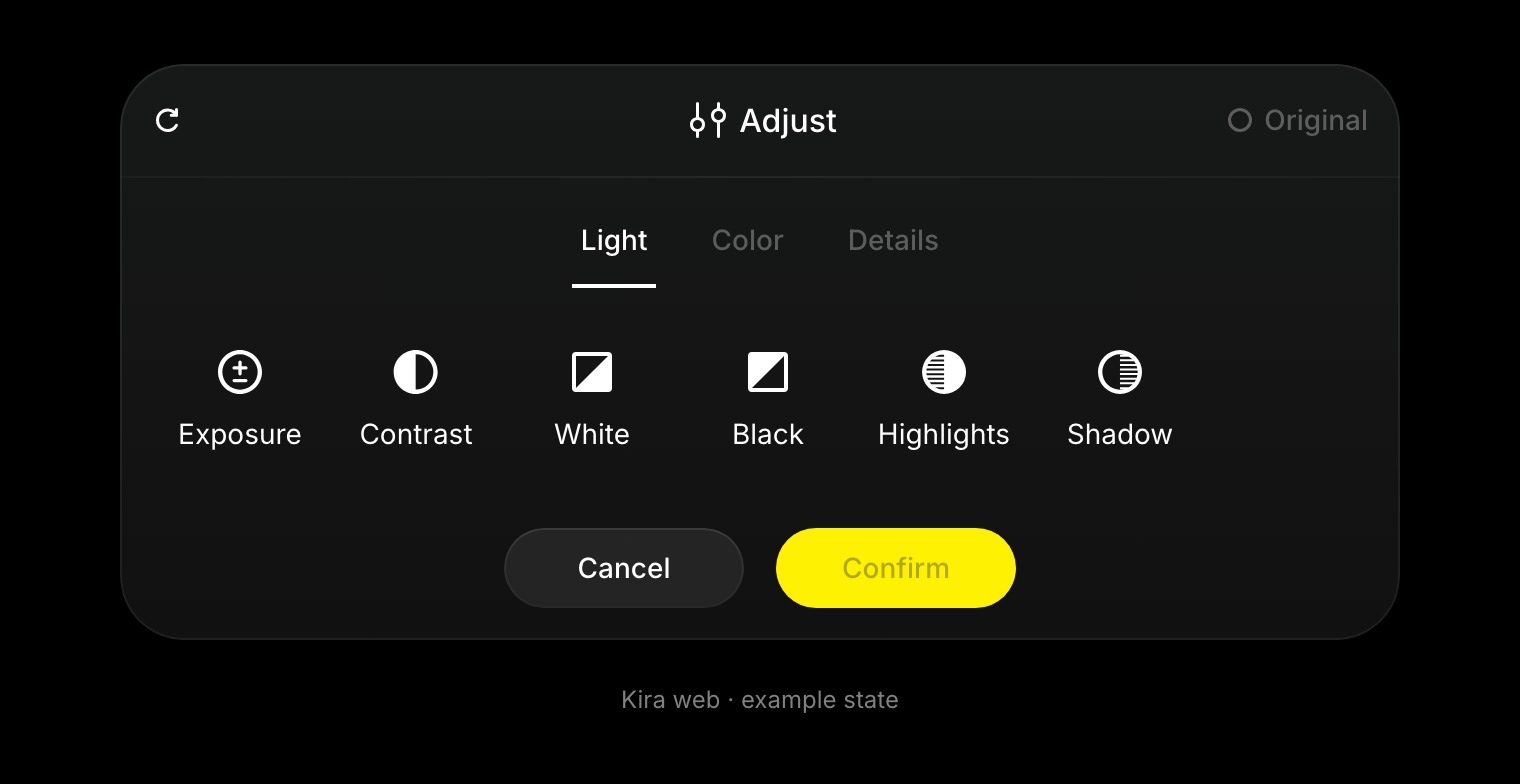
Open and apply adjustments
- Select an image in your project and choose Adjust.
- Open the Light, Color, or Details group.
- Choose a control and make a small change while watching the canvas.
- Compare with the original and reset a control if needed.
- Confirm when the overall result looks right.
Light and tone
Exposure, contrast, highlights, shadows, whites, and blacks change the image's brightness and tonal balance. Tone curves give more precise control over brightness and the available colour channels.
Avoid pushing highlights or shadows so far that useful detail disappears.
Colour
White balance changes temperature and tint. Saturation and vibrance change colour intensity, while the colour mixer lets you work with individual colour ranges.
Split toning and calibration provide additional colour controls where shown. Use them gradually when matching a series of pictures.
Detail and finishing
Sharpening, clarity, texture, noise reduction, grain, fade, and vignette can change the finish. Too much sharpening or clarity can create harsh edges; excessive noise reduction can remove texture.
What Adjust does not replace
Manual colour and tonal adjustments do not replace a particular object or outfit. Use Image Edit or Sketch for content changes.
Export the confirmed result when finished. For AI actions elsewhere in your workflow, read Credits & Usage.