
Account settings
Last updated:
Settings is where you change how Kira looks and behaves for you. On desktop, open Profile in the left navigation and choose Settings; the sections sit in a list on the left. On mobile web, tap Profile, then Settings; the same sections are stacked on one page.
Find what you need
Pick a task to see the exact path on desktop and on mobile web.
Profile → Settings → Log out, at the bottom of the left-hand list.
Profile → Settings → scroll to the bottom → Log out.
Logging out deletes nothing. Sign in with the same Google account and your projects, posts and credits are back.
Signing in and your email
Kira on the web signs in with Google only. Your email address is the one on that Google account; you can see it under Edit profile, but it cannot be changed there. If you sign in with a different Google account, Kira treats it as a separate account with its own projects and credits.
Edit profile
Account → Edit profile holds your photo, display name and bio, which are public on your profile and on every post you publish. Choose Save when you are done. The name must be between 1 and 30 characters.
Language
Preferences → Language lists all 43 languages Kira supports. The choice applies to Kira's interface, the Help Center and the legal pages in this browser. The Kira app on iOS and Android follows its own language setting on the device.
Watermark on exports
Exports from a Free account carry a small Kira watermark. On Basic, Pro and Max, open Preferences → Watermark and turn on Remove watermark. The switch is off until you turn it on, so if your paid exports still show a watermark, this is the place to look. Files you exported earlier keep their watermark; export them again.
Notifications and emails
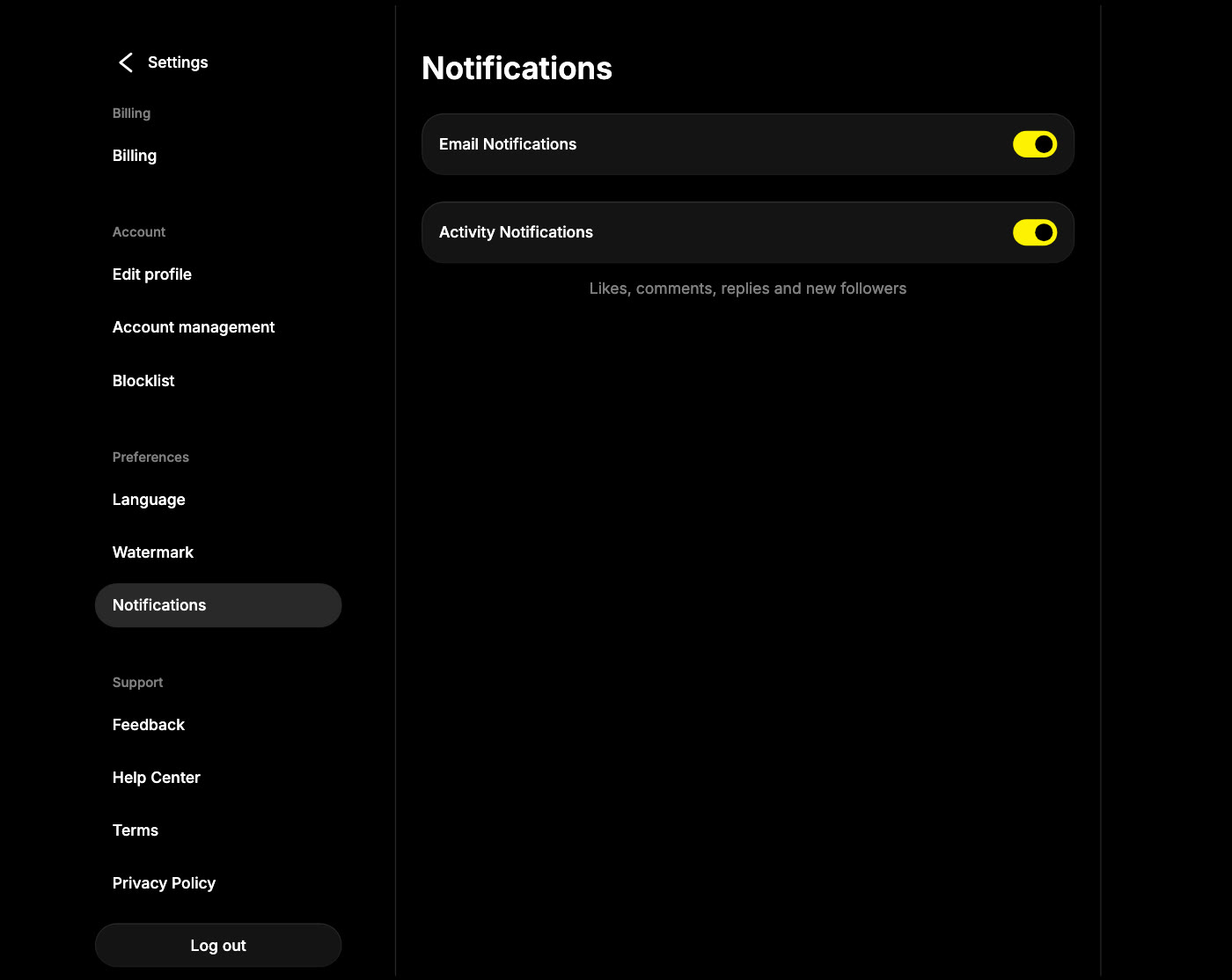
Preferences → Notifications has two switches:
- Email Notifications covers every email Kira sends, including the daily-credits reminder. Turn it off to stop all of them; the unsubscribe link at the bottom of any Kira email does the same thing.
- Activity Notifications covers likes, comments, replies and new followers in the app and the notification centre.
Blocked users
Account → Blocklist lists everyone you have blocked. Choose Unblock to lift a block. To block someone, open their profile, choose More, then Block. See Publish, edit and delete a post for what blocking does.
Log out
On desktop, Log out is at the bottom of the Settings list. On mobile web, scroll to the bottom of Settings. Logging out deletes nothing: sign in with the same Google account and your projects, posts and credits are back. To delete the account itself, see Account Deletion.
Common questions
Where do I see my credits and plan?
Billing, at the top of Settings. Credits & Usage explains the balance, and Billing, Cancellations & Refunds covers subscriptions.
Can I change my display name as often as I like?
Yes. It changes on your profile and on existing posts immediately.
Is there a light theme?
Not at the moment. Kira's interface is dark on web and in the app.
Where is the live chat?
Support → Feedback in Settings opens the chat with the Kira team. You can also email [email protected].