
User Guide
Last updated:
Kira makes and edits images and videos from plain words. Describe what you want, or start from a photo, and keep refining the result in the same project until it's right.
This guide covers the basics. For a hands-on walkthrough, see Create your first image.
Before you start
- An account. Open kira.art and choose Sign in. On the web you sign in with Google. You need to be signed in to create.
- Credits. Every creation uses credits. New accounts get 30 welcome credits on the Free plan, so you can try Kira before choosing a plan. See Credits & Usage.
- One account everywhere. Your projects, creations and credits are the same on the web and in the Kira app.
Find your way around
On desktop, the navigation is on the left. There are four places:
- Home is the community gallery. Browse what others have made, open a post, comment, follow creators, or share your own work.
- Editor is where you create. Start something new, or come back to a project.
- Discover is for exploring: search, trending activities and topics.
- Profile is your public page, with your published posts and a way into your account settings.
On mobile
On mobile web the same four places sit along the bottom: Home, Create, Explore and Profile. Create is the Editor, and Explore is Discover.
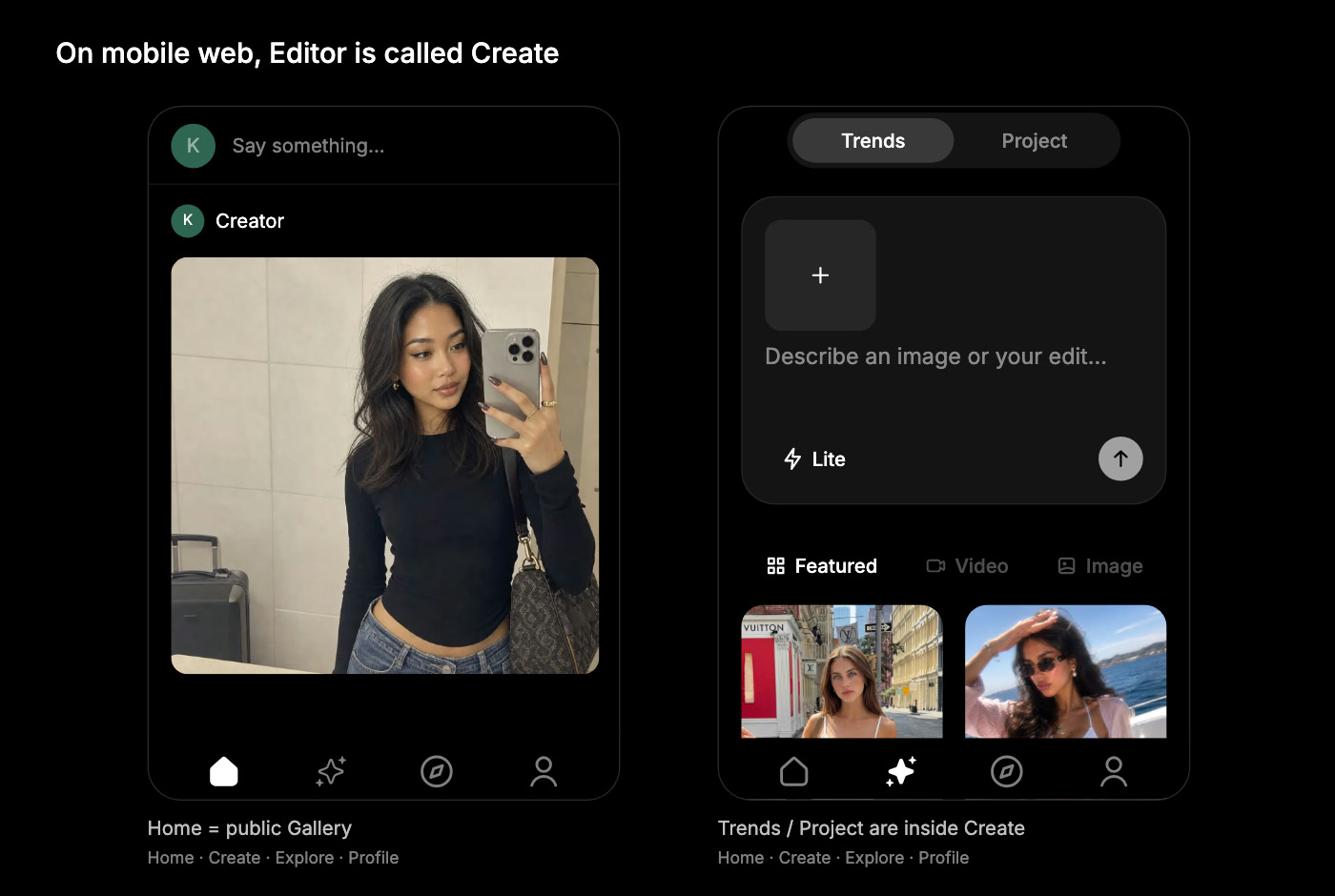
Editor: Trends and Project
The Editor has two tabs at the top.
- Trends is where you start something new. It holds the prompt box and a wall of template cards. Pick a template to load its prompt and reference media, then change anything you like before sending.
- Project is your own work. Every request you send becomes a project here, with a title, date and preview. Choose Open Project to continue editing.
The Featured, Video and Image chips under the prompt box only filter the templates.
Make something
There are three ways to begin, and you can combine them:
- Describe it. Type what you want in the prompt box. Name the subject, the setting and the look, for example "a small ceramic cup on a wooden table, soft morning light".
- Start from a photo. Use the + button next to the prompt box to add an image, or drag one in on desktop, then say what to change.
- Pick a template. Choose a card in Trends and send it as is, or edit the prompt first.
Then choose a model and press send.
Which model to pick
| Model | Best for | Available on |
|---|---|---|
| Lite | Quick ideas and everyday edits. Fastest and cheapest. | Every plan, including Free |
| Nova | Sharper, more precise results. About twice the credits of Lite. | Pro and Max |
| Ultra | The highest quality Kira can produce. | Max |
Video generation is available on Pro and Max. If a model or tool is greyed out, your plan doesn't include it yet.
Inside a project
After you send a request, Kira opens the project in the editor. Each part of the screen has a job:
- Canvas, in the middle, shows your current result.
- Versions, on the left, keeps every result you've made in this project. Click one to go back to it.
- AI tools, on the right, are one-click actions for the image on the canvas.
- Prompt, at the bottom, is where you tell Kira what to do next.
- Export downloads the current result. Publish shares it to the community.
For drawing-guided creation or edits, use Sketch. Draw on an image or a blank canvas, choose Next, then describe the result and confirm.
To refine a result, just keep talking to Kira in the same project. Say what to change and what to keep:
Make the background pale blue. Keep the product and the lighting the same.
The AI tools
For images: Remove Background, Replace Background, Eraser, Expand, Redux, Upscale, Filter, Motion Control, Crop and Adjust. For videos: Motion Control, Video Edit, Video Extend and Trim. Image Generation and Video Generation start a fresh result from the canvas.
On mobile web the same tools live in a tray under the canvas, and the versions sit along the top.
Save or share
- Export saves the current image or video to your device. Nothing is published.
- Publish posts it to the community gallery, where others can see, like and comment. Only publish what you want to be public.
Credits at a glance
Most actions use credits: an image with Lite is 5 credits, with Nova or Ultra normally 10, and video is billed per second. Your balance is in Profile → Settings → Billing. Free-plan accounts can top up to 15 credits once every 24 hours.
Read Credits & Usage for current prices, plan allowances and how charges work.
Get help
If something isn't working, check your connection and your credit balance, then try again. If it keeps happening, use the live chat in Kira or email [email protected] with what you were trying to do and any error message.
See what's new in the changelog, or continue with Create your first image.