
Hashtags: Tag Your Posts and Discover More
Last updated:
A hashtag links a public post to a topic, a style or a series. Every tag has its own page: open #ootd or #fashion and you see everything the community has published around that idea, with a Post button to add your own.
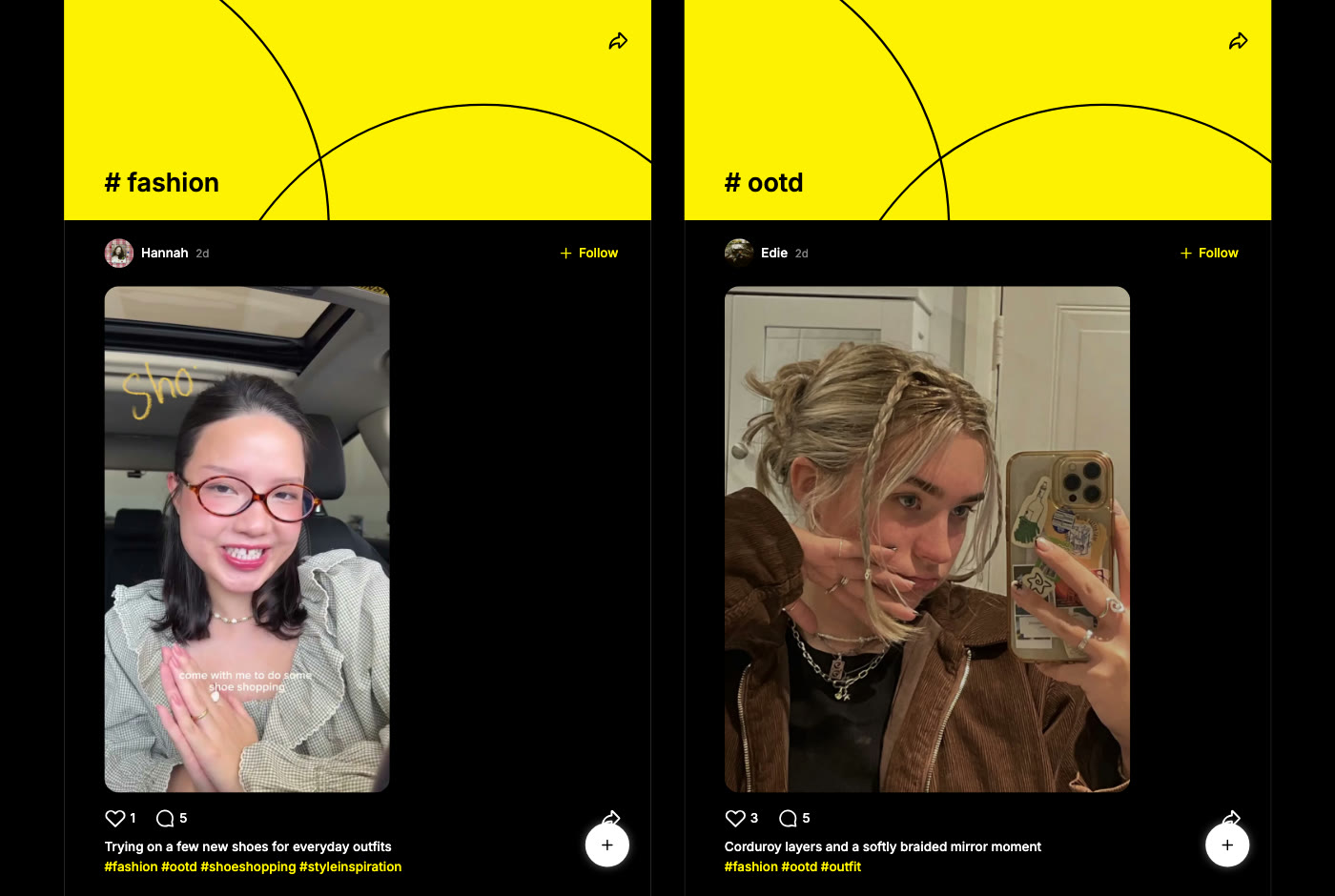
Add tags when you post
- Choose Publish in a project, or start a post from Home.
- Write the caption and type # followed by the tag. Suggestions appear as you type; pick one or finish your own. The # button under the caption inserts the # for you.
- Choose Post.
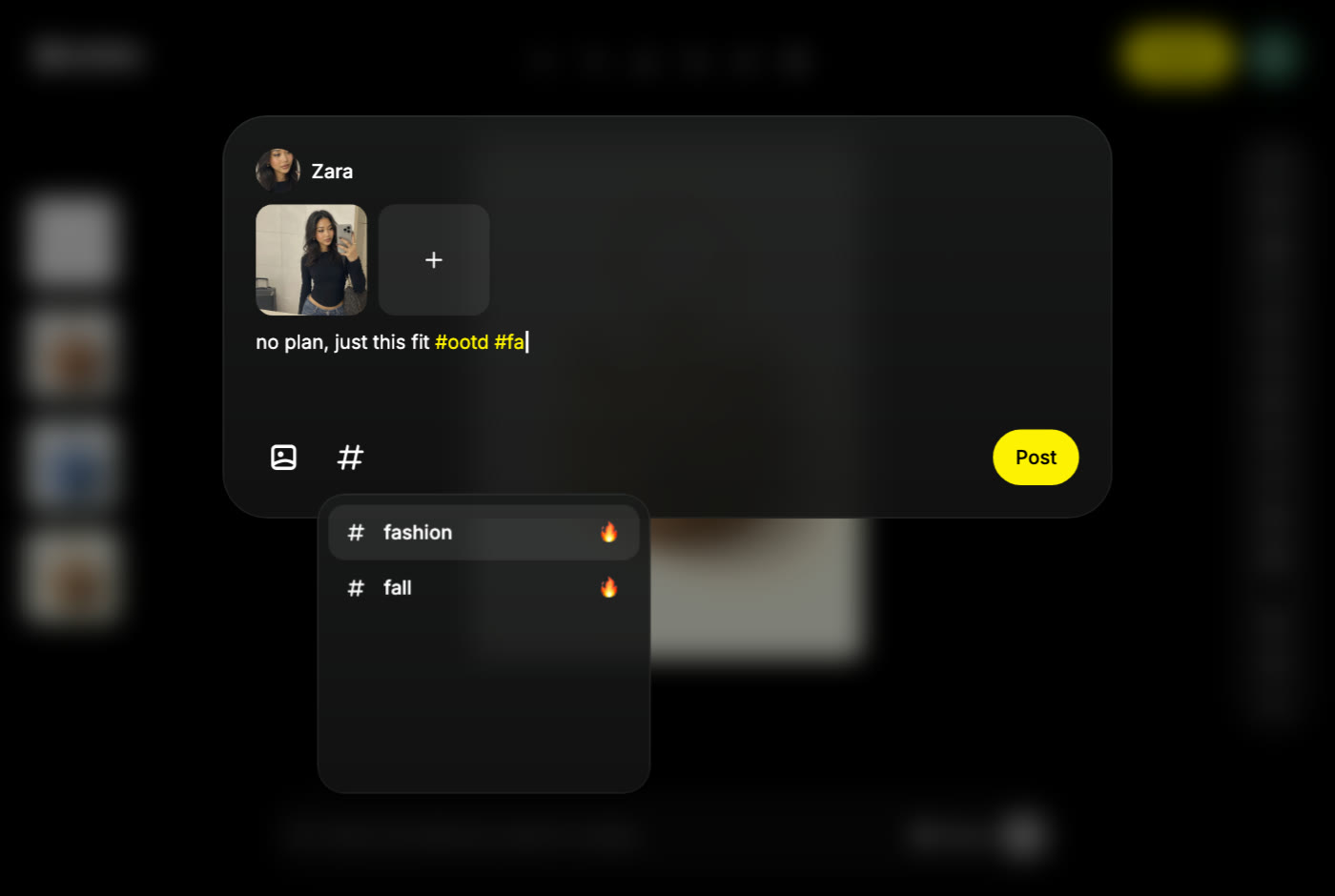
The caption holds up to 500 characters including tags. See Publish, edit and delete a post for the rest of the posting flow.
Explore a tag
Three ways in:
- Discover on desktop or Explore on mobile web lists trending tags, each with a row of recent posts. Choose the tag name to open its page.
- Click or tap any hashtag in a post caption. Tags are highlighted so they are easy to spot.
- Search for a word in Discover and open the Hashtag tab of the results.
A tag page has:
- A header with the tag name and a share button that copies the page link.
- Every public post that uses the tag. Follow, like and comment from here as usual.
- A Post button that starts a new post with the tag already in the caption.
Follow the trail: open #fashion, spot #ootd or #streetstyle in a caption, and keep going.
A hashtag page shows other people's published work. Your own projects stay in Editor → Project and are never listed there unless you publish them.
Pick tags that work
- Describe the subject, style or mood: #productshot, #filmlook, #streetwear.
- Use one personal tag for a series so people can follow it.
- Add the activity or community tag when you take part in one.
- Three relevant tags beat ten popular ones. Tags do not promise reach or rewards.
Public sharing
Hashtags only exist on published posts, and a published post is public together with your profile name and photo. Review the caption and the media before you post. The Privacy Policy covers public content.